Team and Workday: Invite your crew and see what they see
Invite your helpers, decide what each one can see, and get to know Workday, the screen your crew uses on the job.
On this page
In CrewAcorn
How to invite someone to your team
- 1In the side menu, hover over Team and tap the yellow +.
- 2Choose the role: a Helper works on their assigned visits and tasks; an Admin helps you run the business.
- 3Helper permissions: turn on only what they should see, such as the client’s phone, prices, invoices or reports.
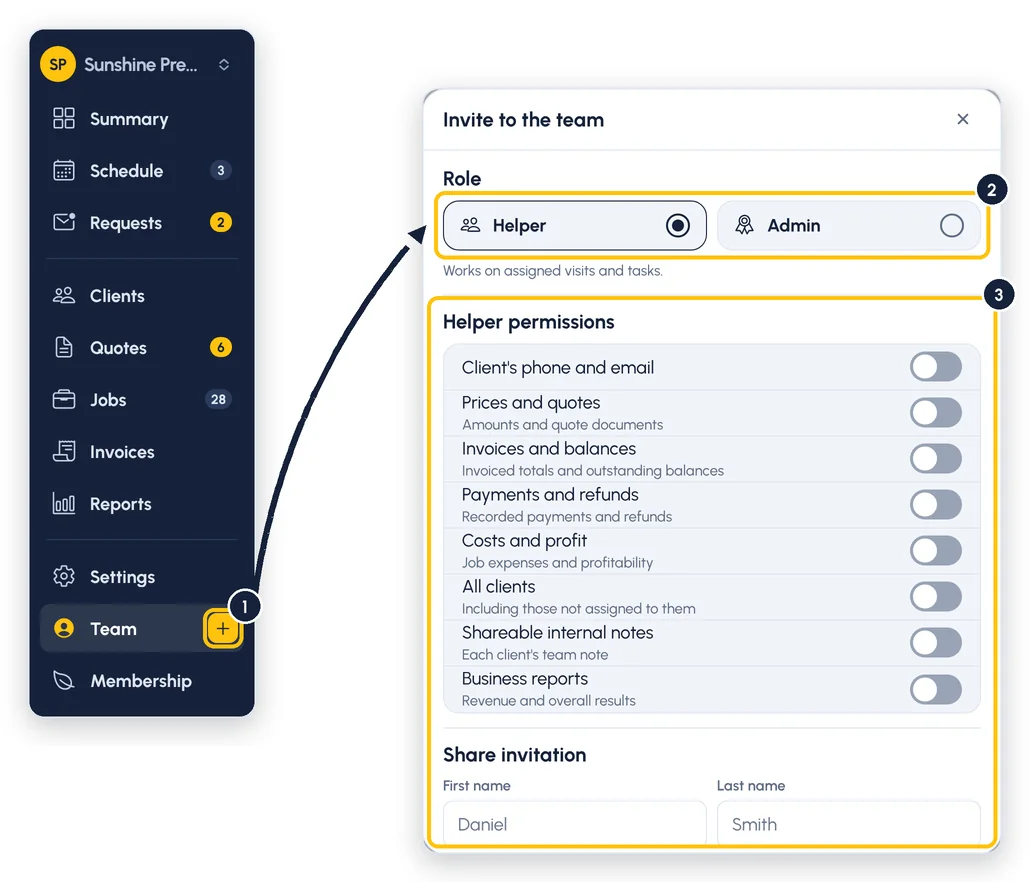
Each person you add counts toward your plan. You can change permissions later.
- 1In More → Team, tap Invite member.
- 2Choose the role: a Helper works on their assigned visits and tasks; an Admin helps you run the business.
- 3Helper permissions: turn on only what they should see, such as the client’s phone, prices, invoices or reports.
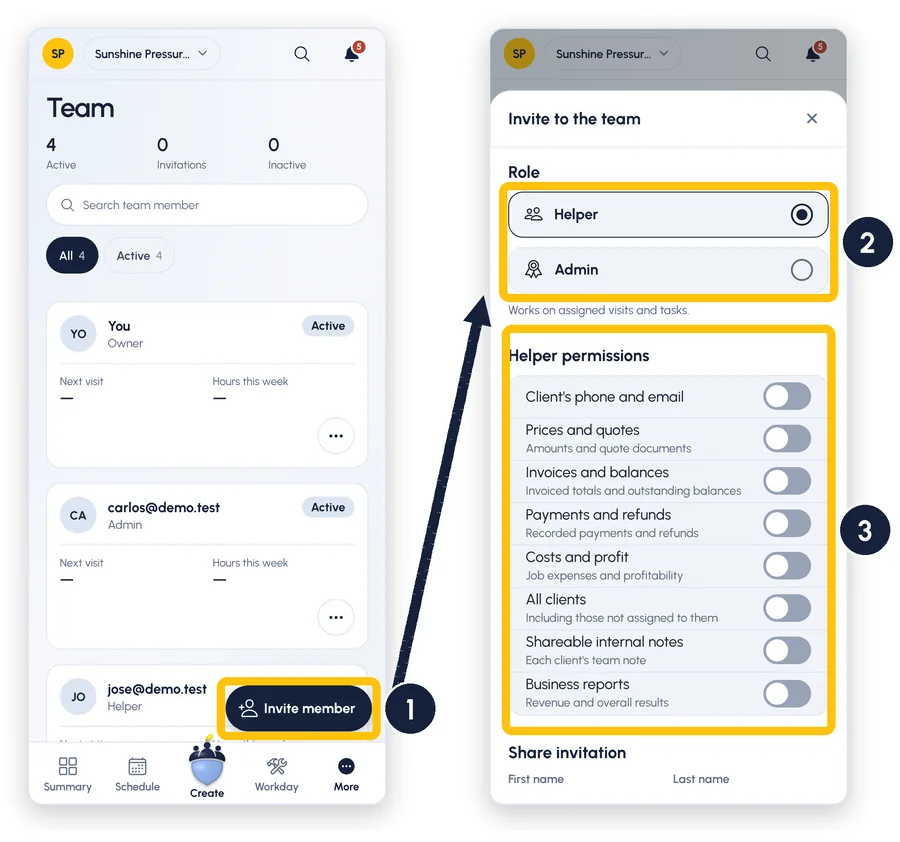
Each person you add counts toward your plan. You can change permissions later.
How to send the invitation
- 1Write their first name, last name and email.
- 2Send it by WhatsApp, Messages or Email, or copy the link. They create their account from the link and join your business.
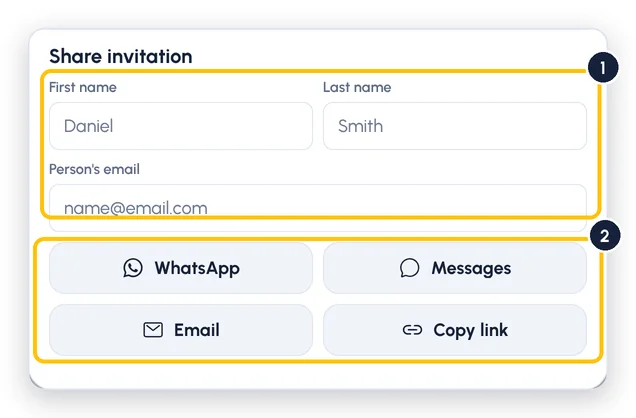
Until they accept, you’ll see it under Invitations.
- 1Write their first name, last name and email.
- 2Send it by WhatsApp, Messages or Email, or copy the link. They create their account from the link and join your business.
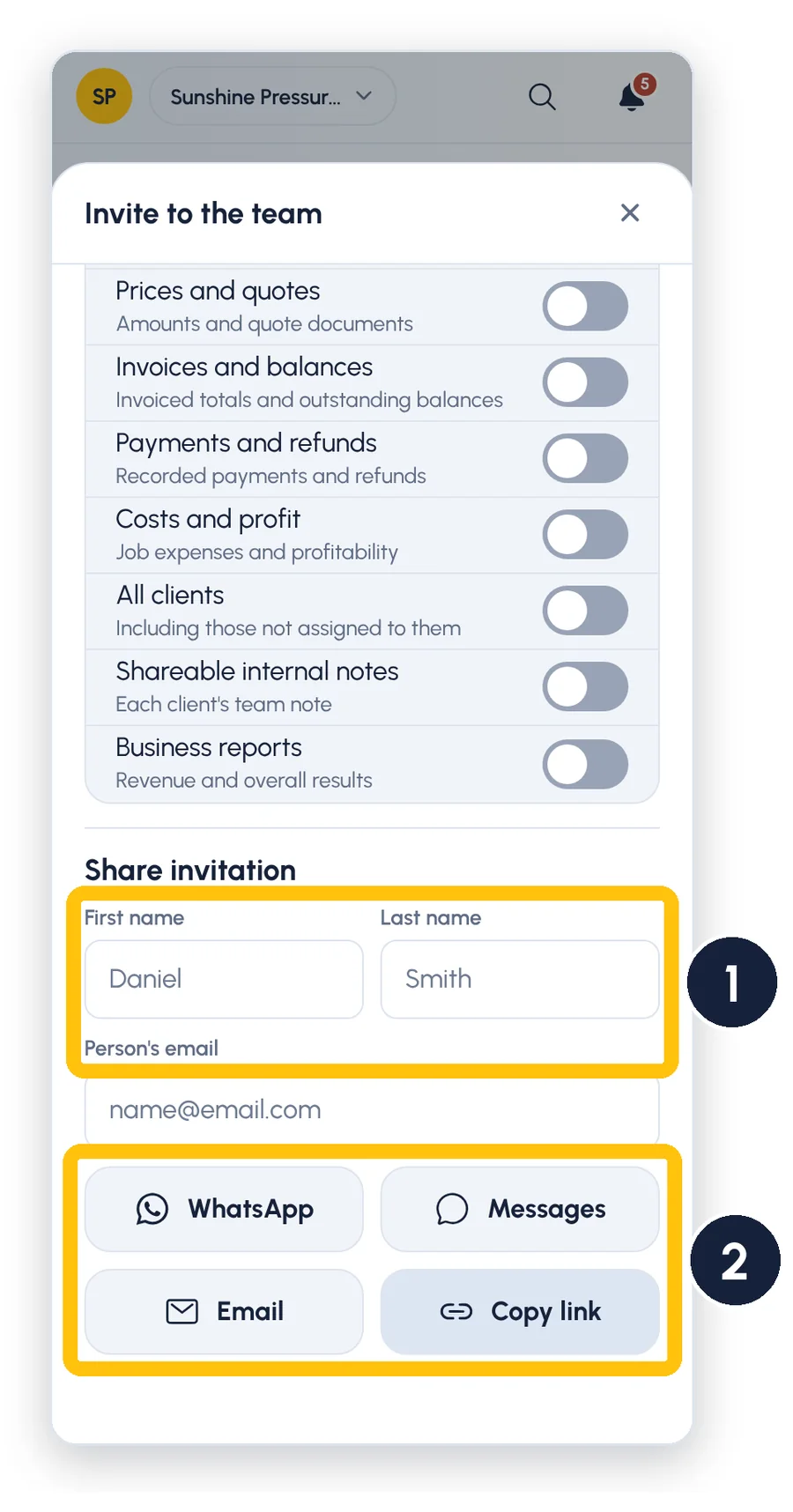
Until they accept, you’ll see it under Invitations.
How to manage your team
- 1How many people are active, how many invitations are pending and who is inactive.
- 2Each person with their role, access, next visit and hours this week.
- 3The ⋯ menu: Edit, Permissions or Open their profile.
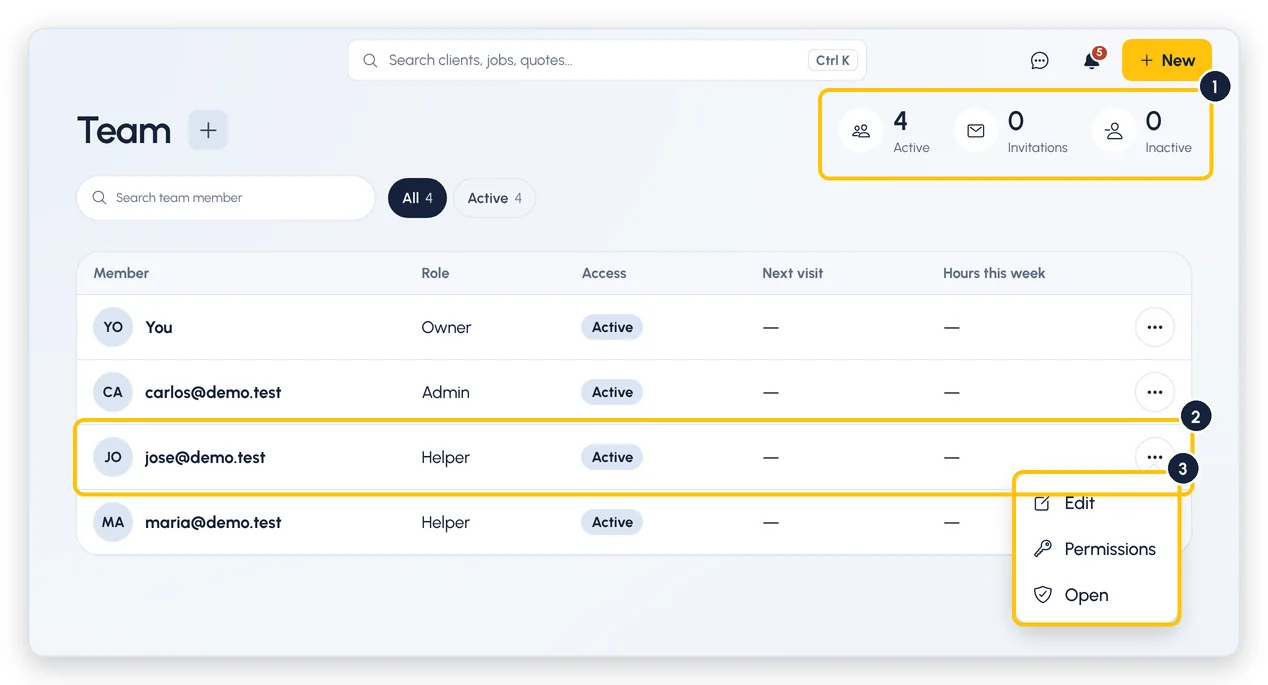
- 1How many people are active, how many invitations are pending and who is inactive.
- 2Each person with their role, access, next visit and hours this week.
- 3The ⋯ menu: Edit, Permissions or Open their profile.
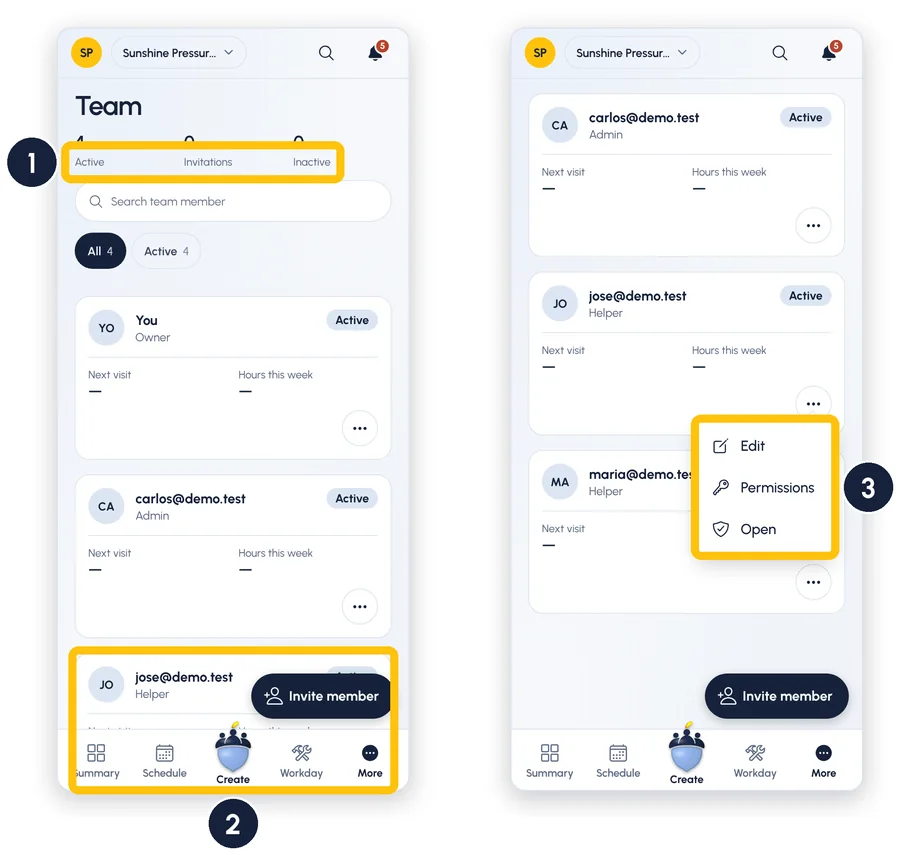
What your crew sees
How your crew uses Workday
- 1Today shows their visits of the day; Calendar, the coming days.
- 2Each visit with time, job, client and address. Tap it to open it.
- 3Call, WhatsApp, Text or Directions with one tap.
- 4Start shift when they arrive. Hours are recorded on their own.
- 5Photos before, during and after, with a comment if they want.
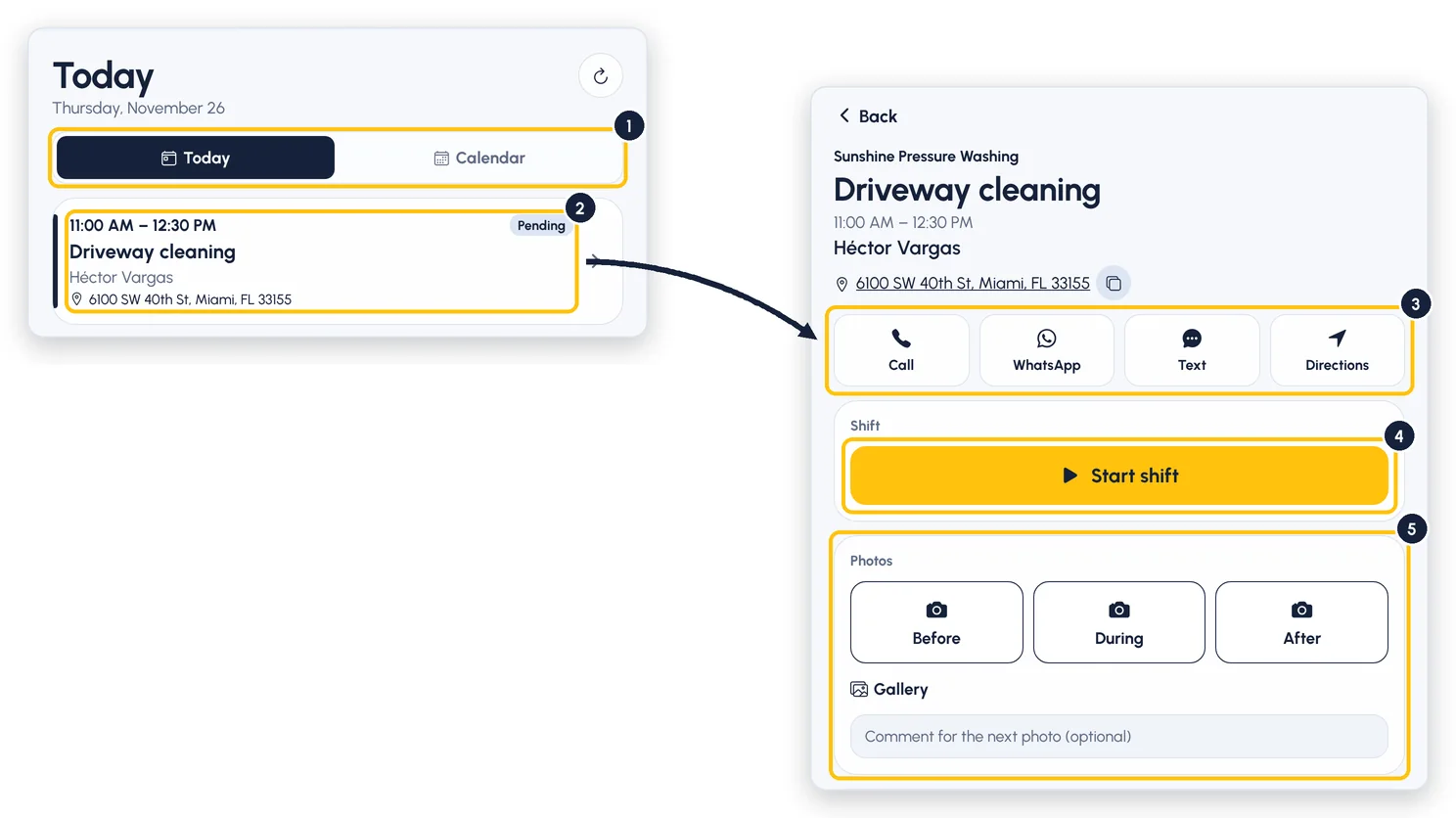
Workday is made for the phone. Your crew only sees what their permissions allow.
- 1Tap Workday at the bottom. Today shows the visits of the day; Calendar, the coming days.
- 2Each visit with time, job, client and address. Tap it to open it.
- 3Call, WhatsApp, Text or Directions with one tap.
- 4Start shift when they arrive. Hours are recorded on their own.
- 5Photos before, during and after, with a comment if they want.
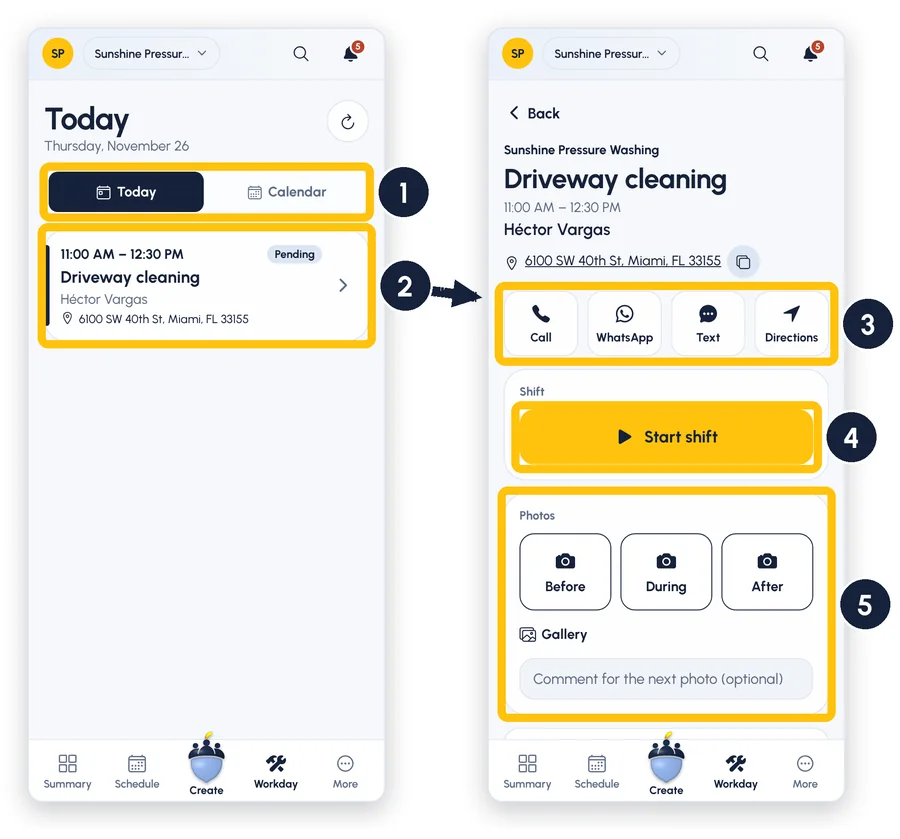
Workday is made for the phone. Your crew only sees what their permissions allow.
How your crew finishes a visit
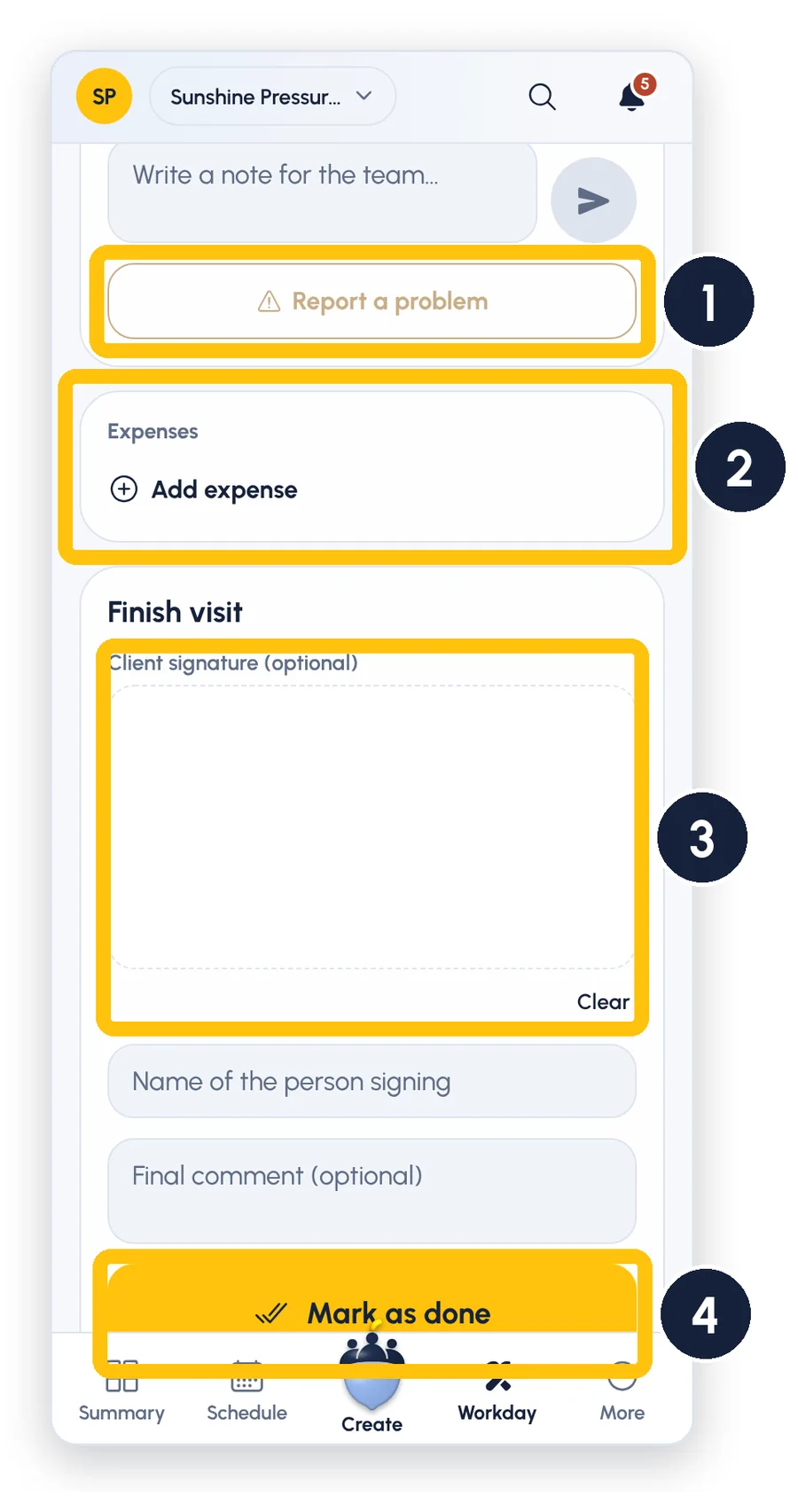
- 1Notes for the team, or Report a problem so you find out right away.
- 2Expenses they paid on the job.
- 3The client’s signature, with the name of the person signing and a final comment (optional).
- 4Tap Mark as done. You get a notification and the job is ready to invoice.
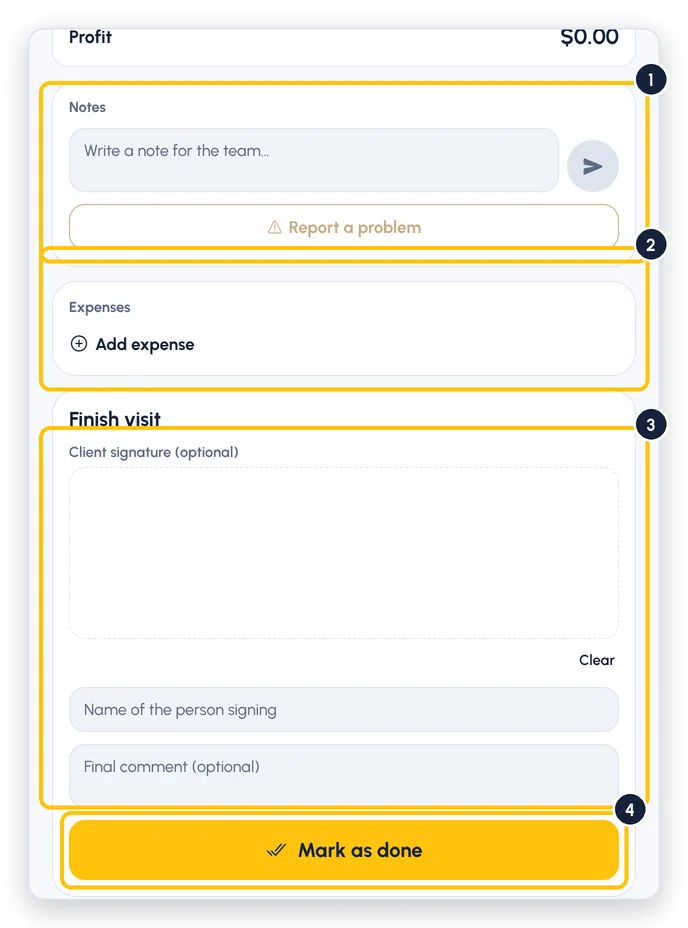
- 1Notes for the team, or Report a problem so you find out right away.
- 2Expenses they paid on the job.
- 3The client’s signature, with the name of the person signing and a final comment (optional).
- 4Tap Mark as done. You get a notification and the job is ready to invoice.