Schedule: See who goes where, and when
All your visits in one calendar, for the whole team or one person at a time.
How to read your schedule
- 1Show the whole team or just one person.
- 2Calendar, Map or Both.
- 3Move between months or weeks, or go back to Today. Month or Week view.
- 4The day you tap: its visits with time, client and crew. Add visit creates a new one.
- 5Not scheduled: jobs still waiting for a date. Tap one to schedule it.
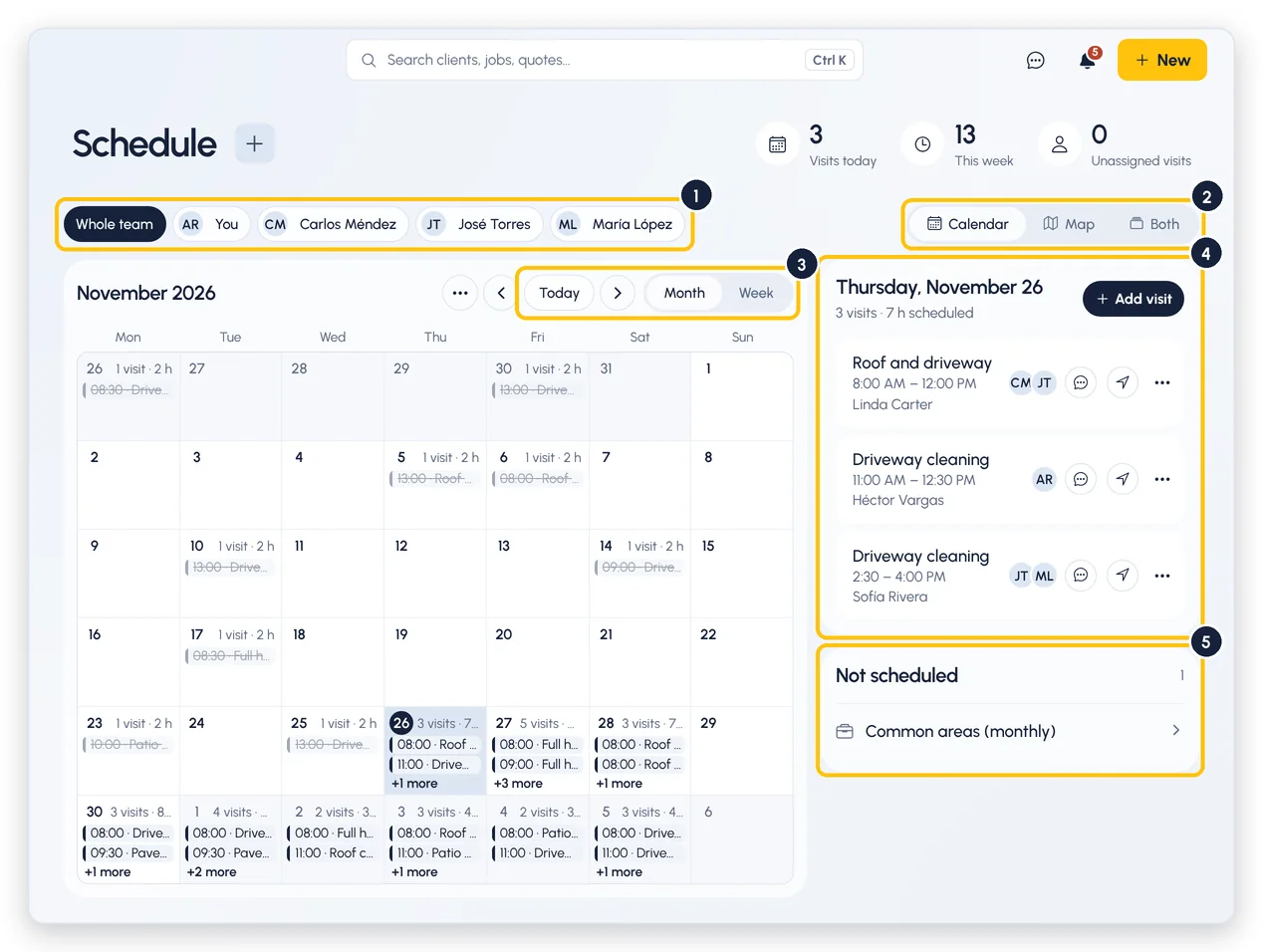
At the top: visits today, visits this week and visits with nobody assigned.
- 1Show the whole team or just one person.
- 2List, Calendar or Map.
- 3Move between months or weeks, or go back to Today. Month or Week view.
- 4Below the calendar, the day you tap: its visits with time, client and crew.
- 5Not scheduled: jobs still waiting for a date. Tap one to schedule it.
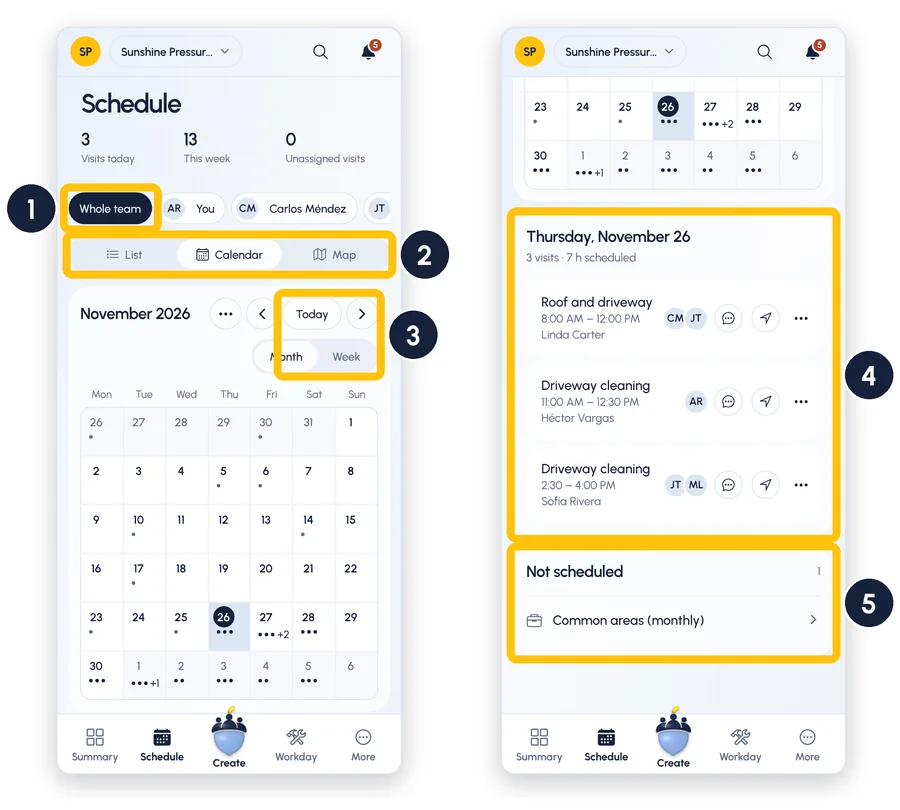
Tap Schedule at the bottom. To add a visit, use Create → New visit.
How to use the week view
- 1Tap Week to see the hours of each day.
- 2Each visit shows its time, job and client. Tap it to open it.
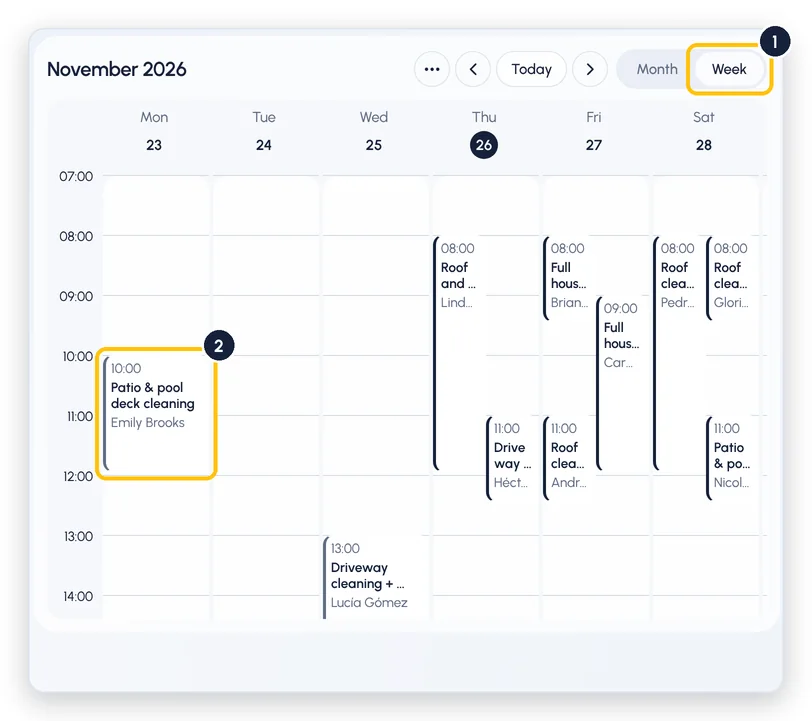
Tap an empty hour to add a visit at that time.
- 1Tap Week to see the hours of each day.
- 2Each visit shows its time, job and client. Tap it to open it.
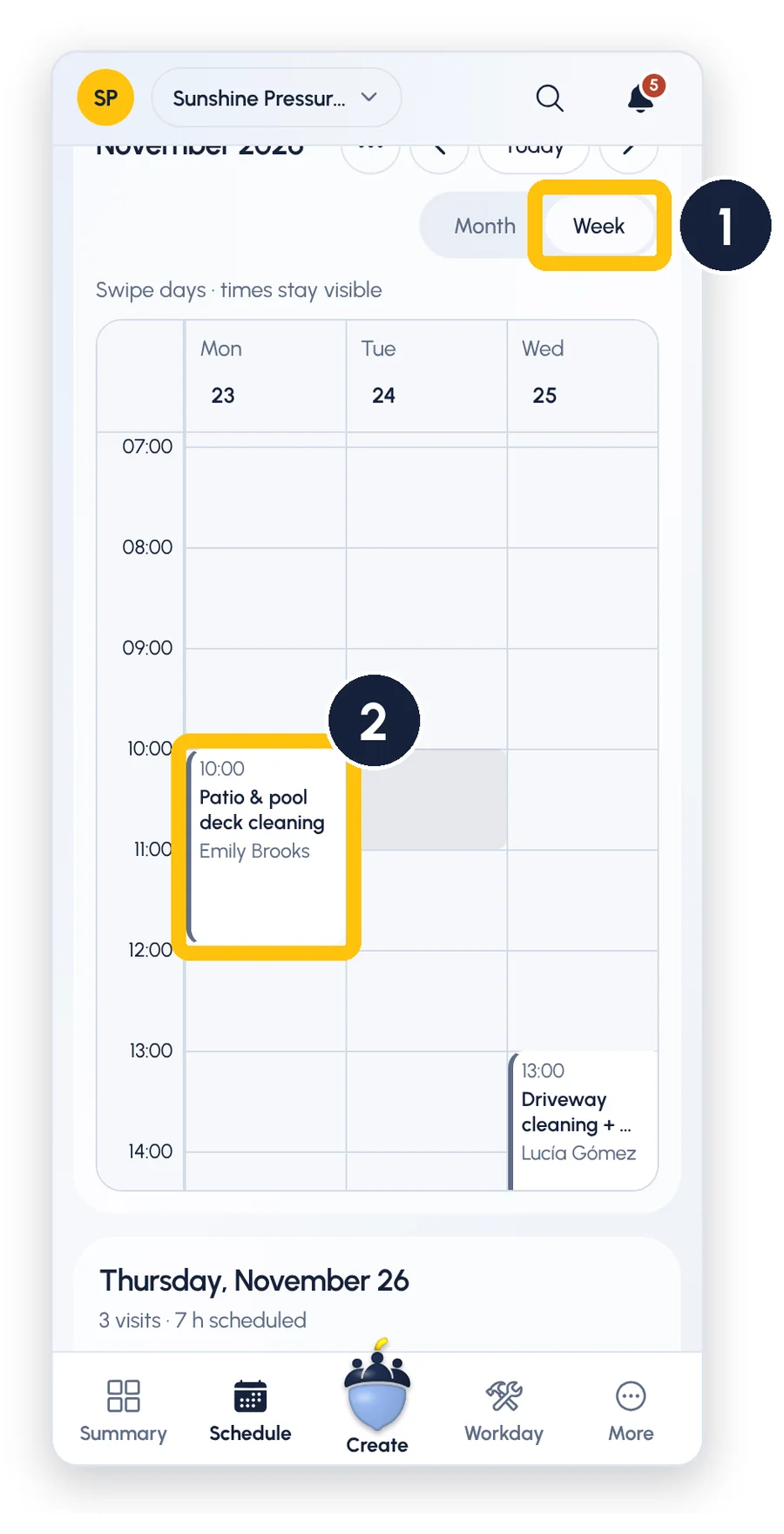
Tap an empty hour to add a visit at that time.
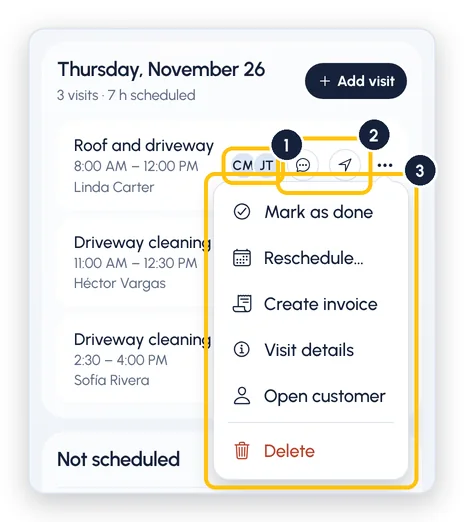
What you can do with each visit
- 1Who goes: the initials of each person.
- 2Contact the client or get directions to the address.
- 3The ⋯ menu: mark as done, reschedule, create the invoice, see the visit details, open the client or delete it.
Your crew sees their visits in Workday on their phone.
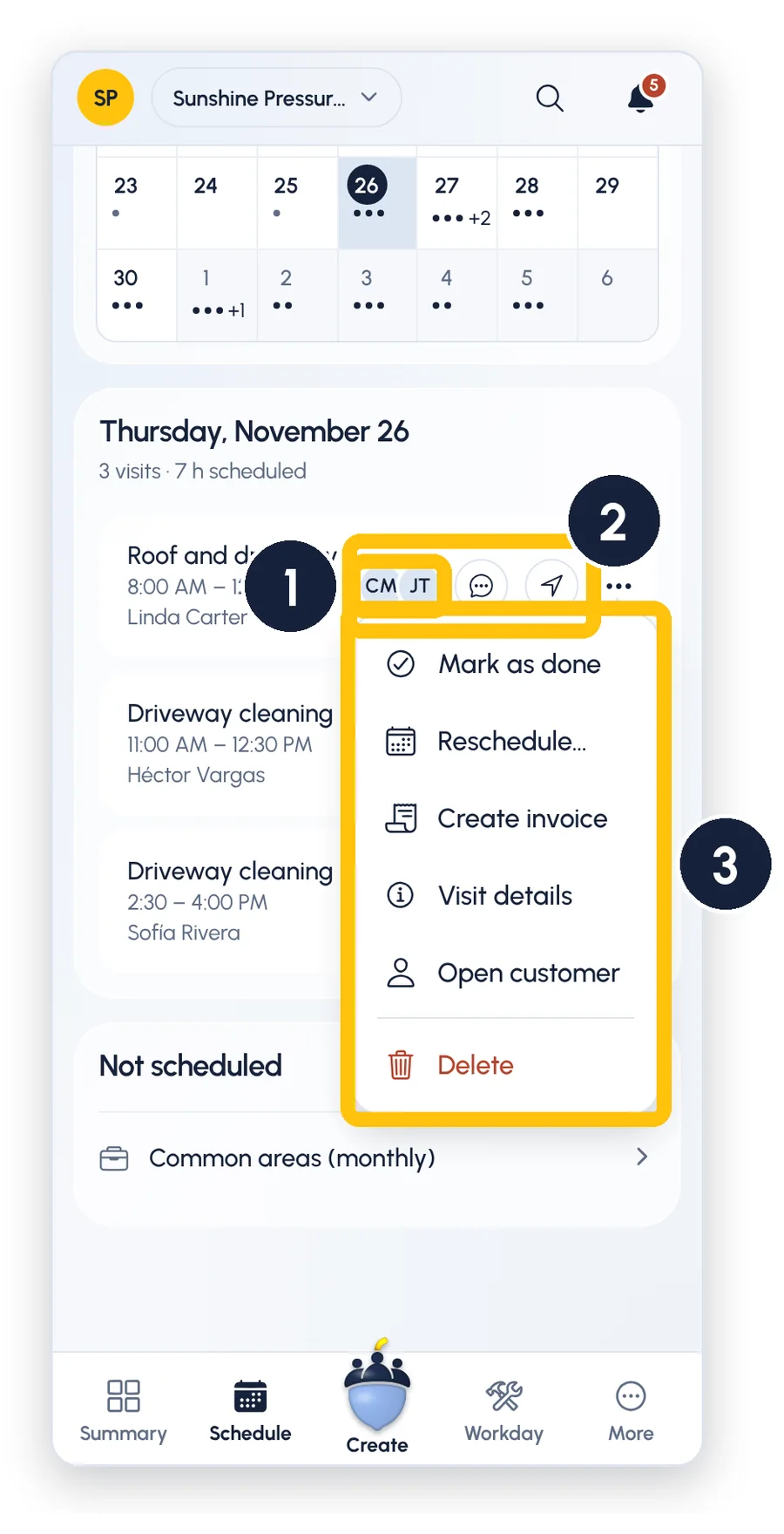
- 1Who goes: the initials of each person.
- 2Contact the client or get directions to the address.
- 3The ⋯ menu: mark as done, reschedule, create the invoice, see the visit details, open the client or delete it.
Your crew sees their visits in Workday on their phone.