Jobs: Create, schedule and follow every job
A job is the work you’ll do: who, where, when and with which crew. Use the map to go straight to what you need.
On this page
How to create a job
- 1In the side menu, hover over Jobs and tap the yellow +.
- 2Client: one you already have, a new one, or from an accepted quote.
- 3The job title and, if you want, instructions for your team.
- 4First visit: schedule it now with date and time, or leave it unscheduled.
- 5How long it takes. The app shows when it ends.
- 6Who goes: tap the people on your team.
- 7Tap Create job.
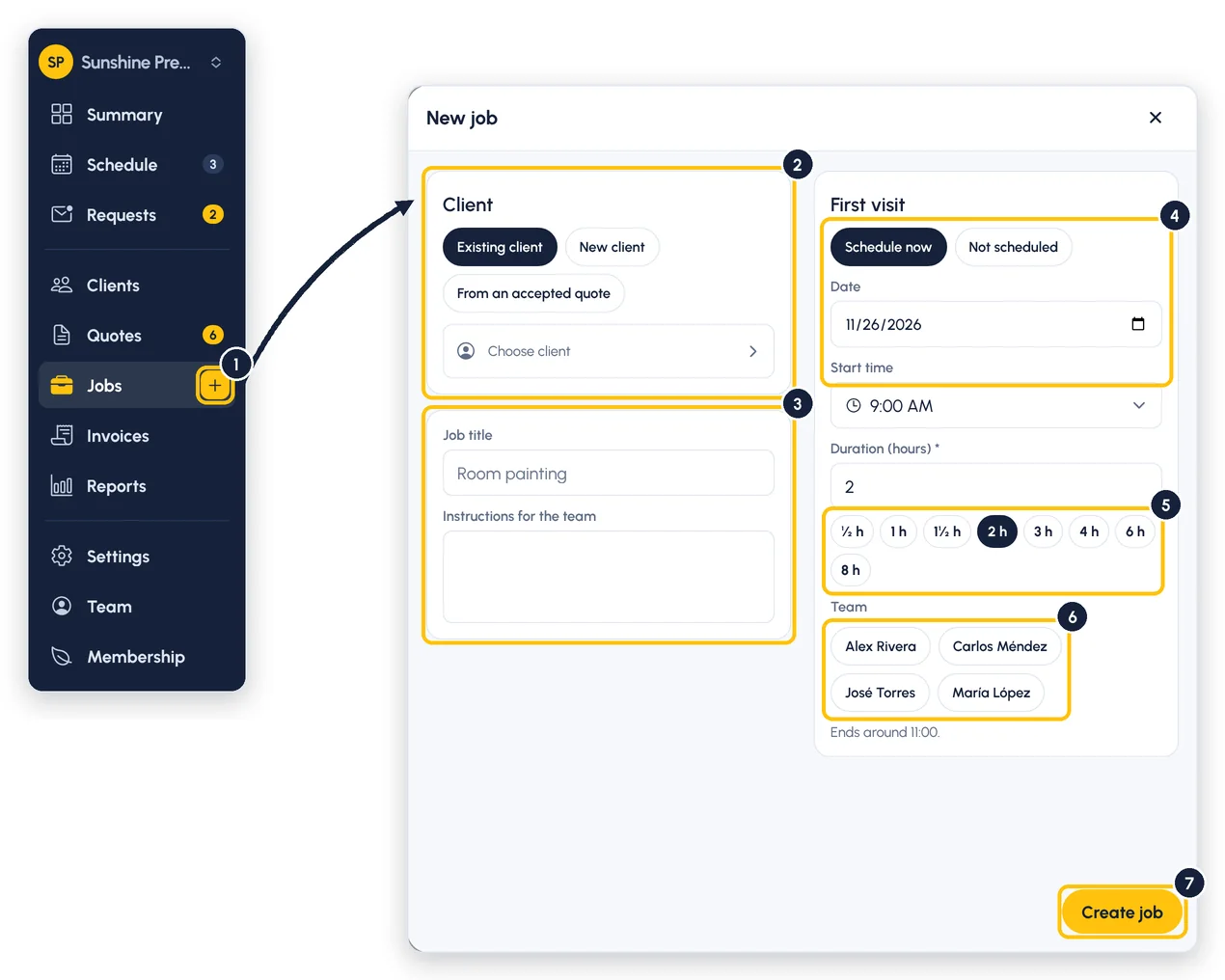
When you schedule it, you can let your client know the date and time by email.
- 1Tap Create at the bottom and choose New job.
- 2Client: one you already have, a new one, or from an accepted quote.
- 3The job title and, if you want, instructions for your team.
- 4First visit: schedule it now with date and time, or leave it unscheduled.
- 5How long it takes. The app shows when it ends.
- 6Who goes: tap the people on your team.
- 7Tap Create job.
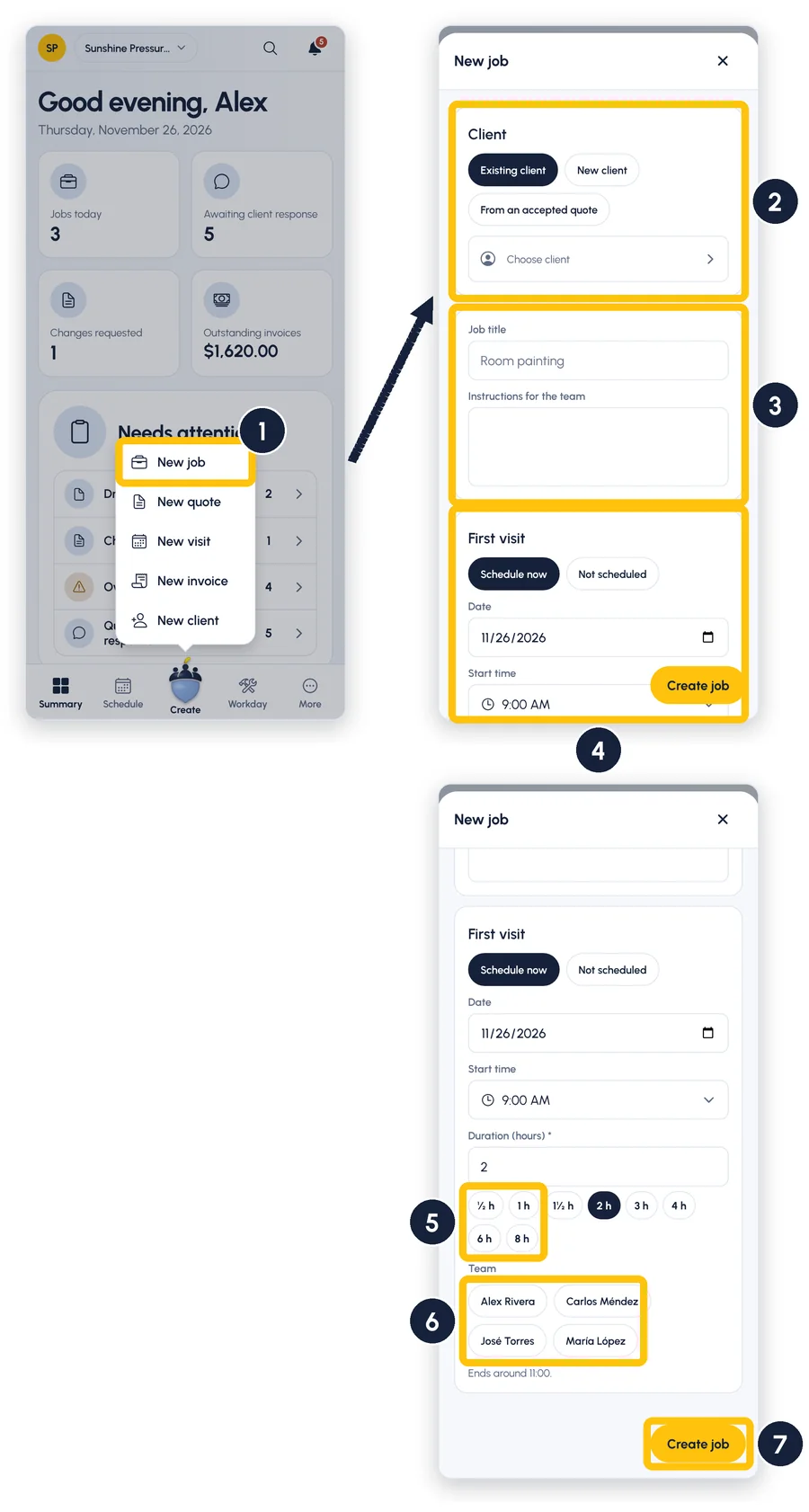
When you schedule it, you can let your client know the date and time by email.
How to create a job from an accepted quote
- 1Open the quote. It shows Accepted.
- 2Tap Create job.
- 3The client, the address and the accepted quote are already filled in. The job and its invoice use that accepted version.
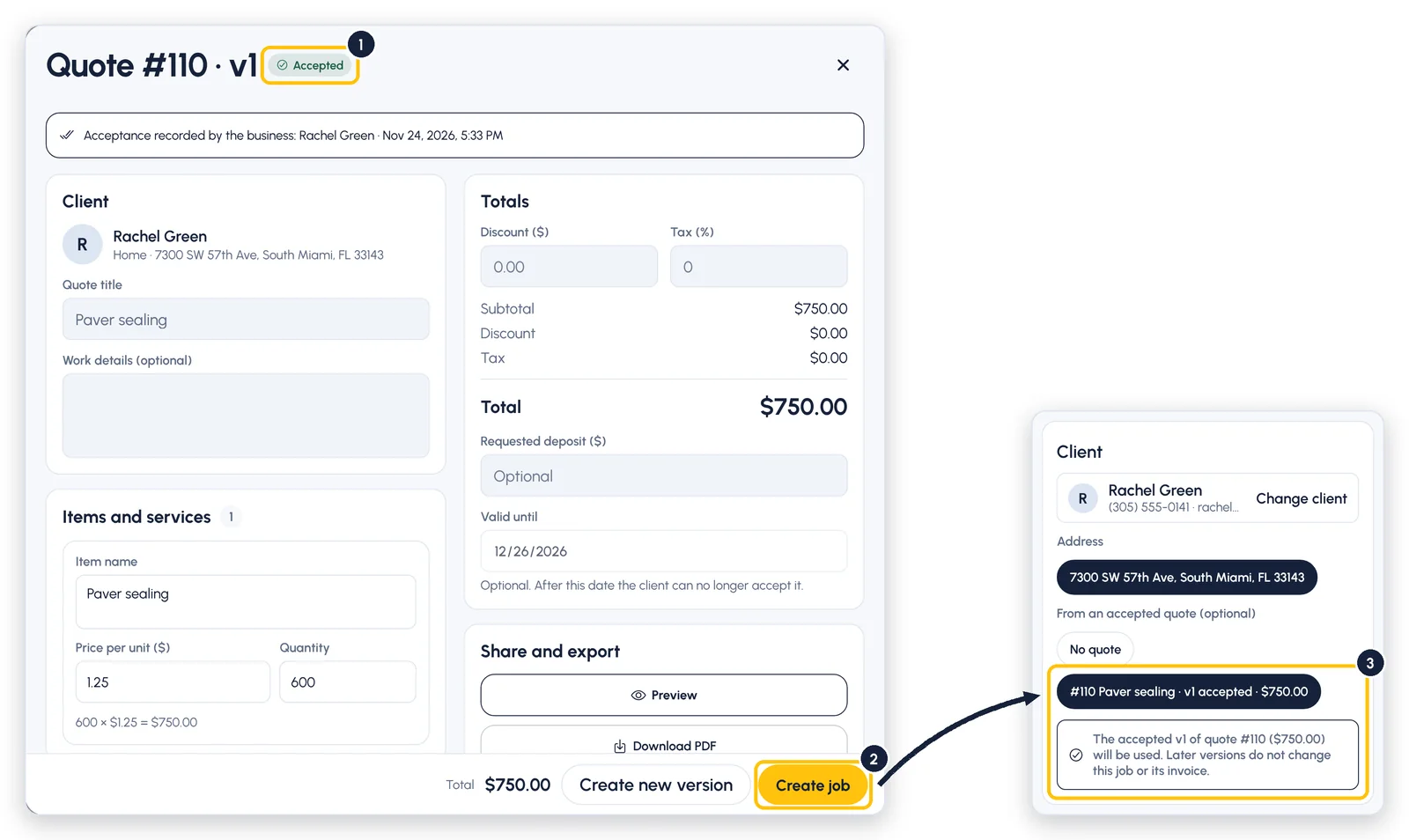
Then choose the date, the team and tap Create job. A later version of the quote doesn’t change this job until your client accepts it.
- 1In More → Quotes, open the quote. It shows Accepted.
- 2Tap Create job.
- 3The client, the address and the accepted quote are already filled in. The job and its invoice use that accepted version.
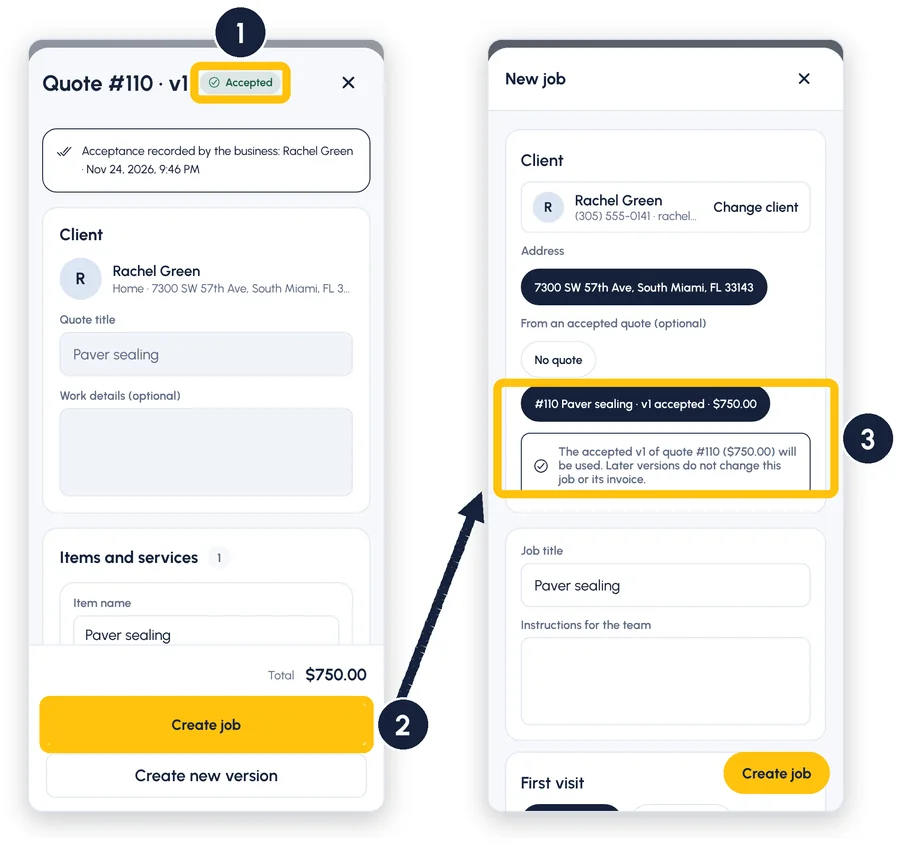
Then choose the date, the team and tap Create job. A later version of the quote doesn’t change this job until your client accepts it.
How to find a job
- 1Needs attention: for example, jobs done but not invoiced. Tap it to see them.
- 2Search by title, client or number.
- 3Filters: active, to invoice, all, unscheduled, scheduled, in progress and done.
- 4Each card shows the client, the status and the next visit. Tap it to open the job.
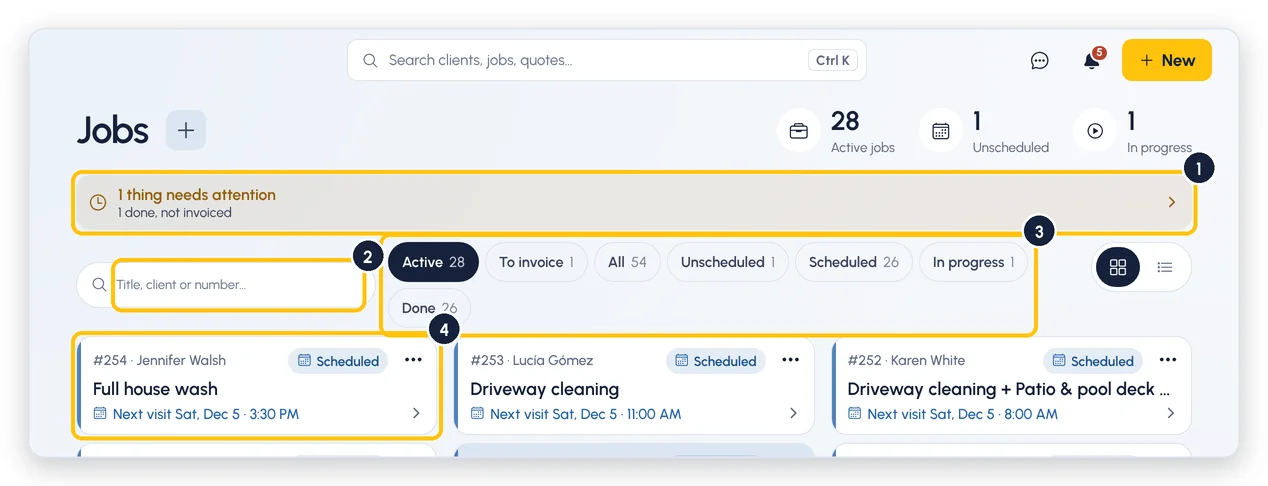
At the top you see your active jobs, the unscheduled ones and the ones in progress.
- 1Needs attention: for example, jobs done but not invoiced. Tap it to see them.
- 2Search by title, client or number.
- 3Filters: active, to invoice, all, unscheduled, scheduled, in progress and done.
- 4Each card shows the client, the status and the next visit. Tap it to open the job.
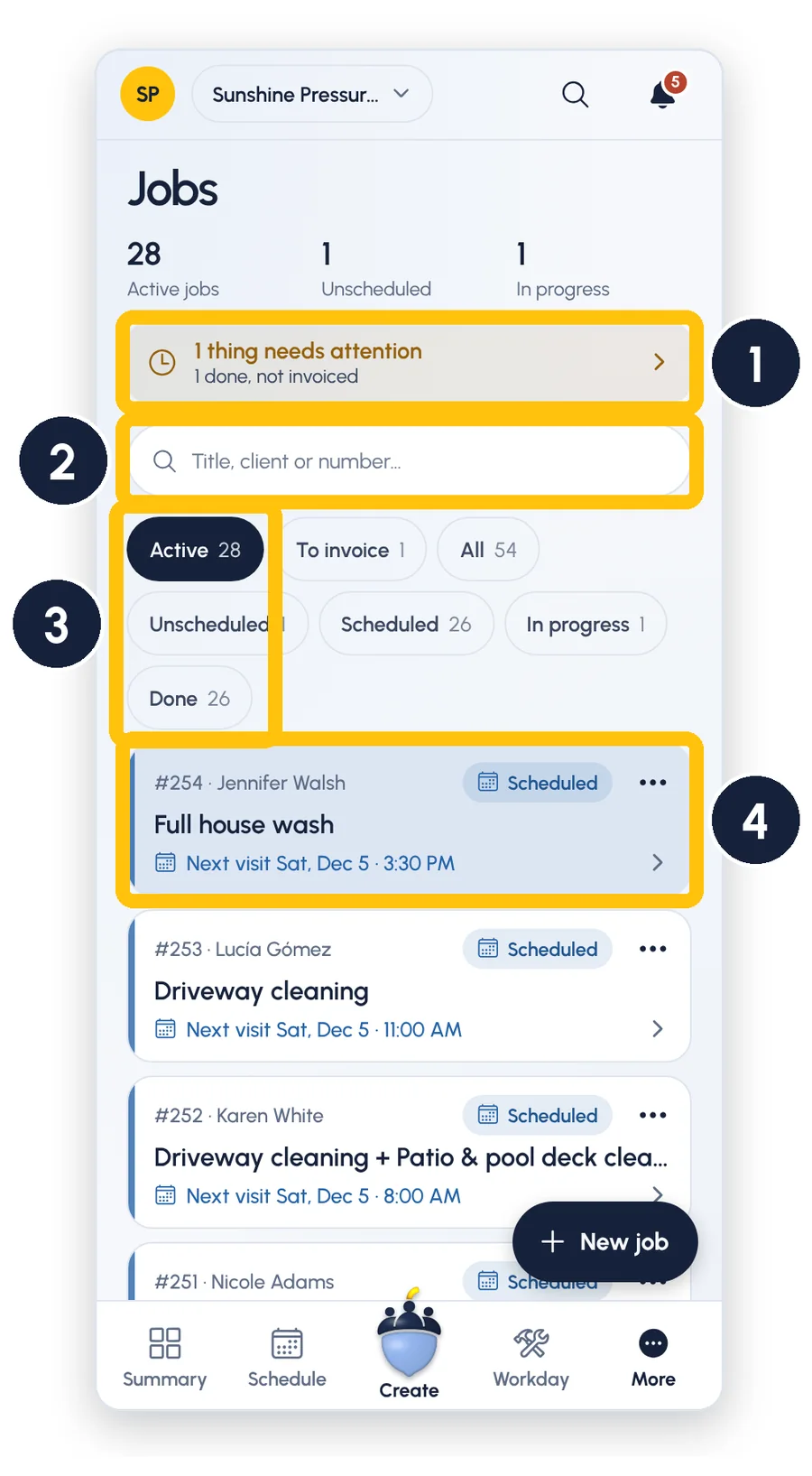
You’ll find Jobs in More. At the top you see your active jobs, the unscheduled ones and the ones in progress.
How to use the job card
- 1Call, Text, WhatsApp or Directions to the address with one tap.
- 2The tabs: Summary, Budget, Execution, Time & costs and Billing (see the invoice inside the job).
- 3From acorn to oak: what stage the job is in and what comes next.
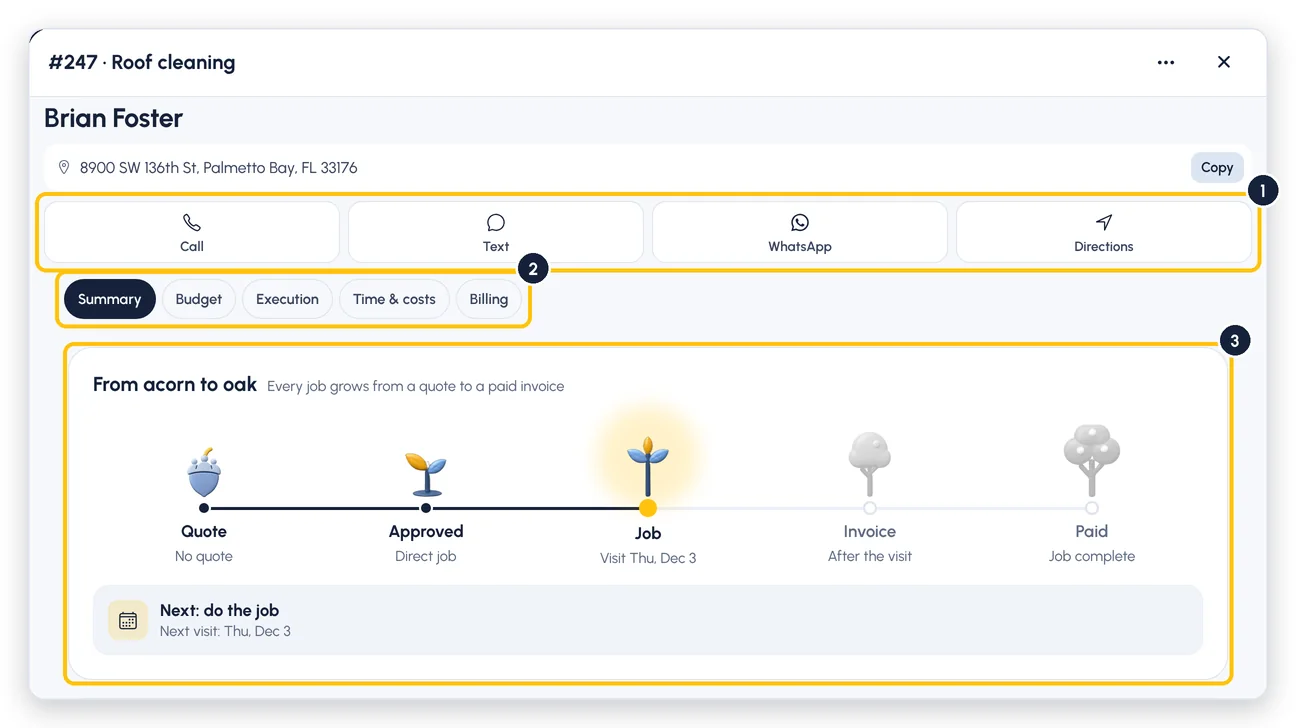
Further down, Job profit shows the value, expenses, team pay and what’s left.
- 1Call, Text, WhatsApp or Directions to the address with one tap.
- 2The tabs: Summary, Budget, Execution, Time & costs and Billing (see the invoice inside the job).
- 3From acorn to oak: what stage the job is in and what comes next.
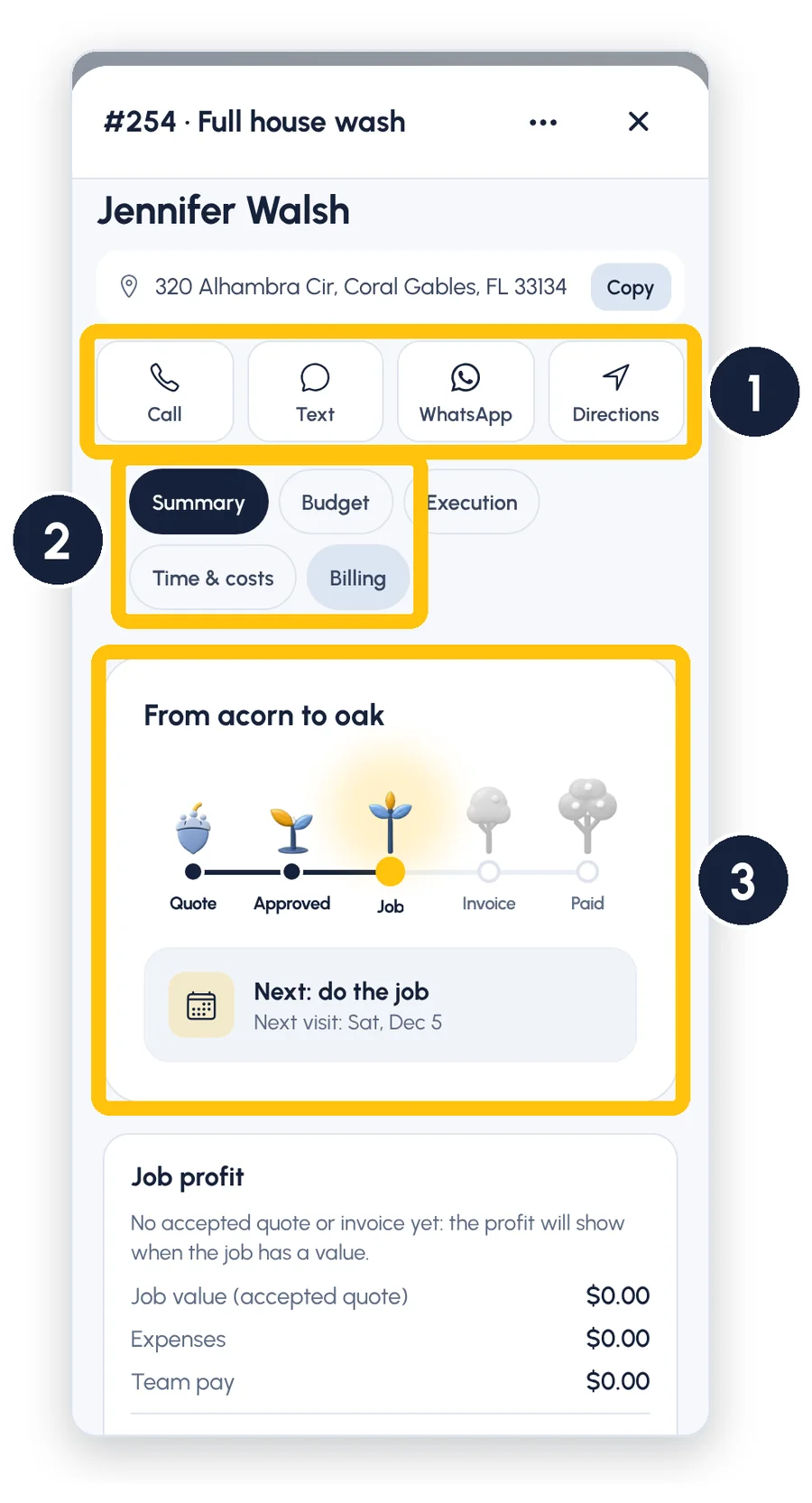
Further down, Job profit shows the value, expenses, team pay and what’s left.
How to add tasks, notes and photos
- 1Tasks: a checklist for the job (for example «Prepare surfaces»).
- 2Notes for the office and your crew.
- 3Photos before, during and after: take one or choose it from your phone.
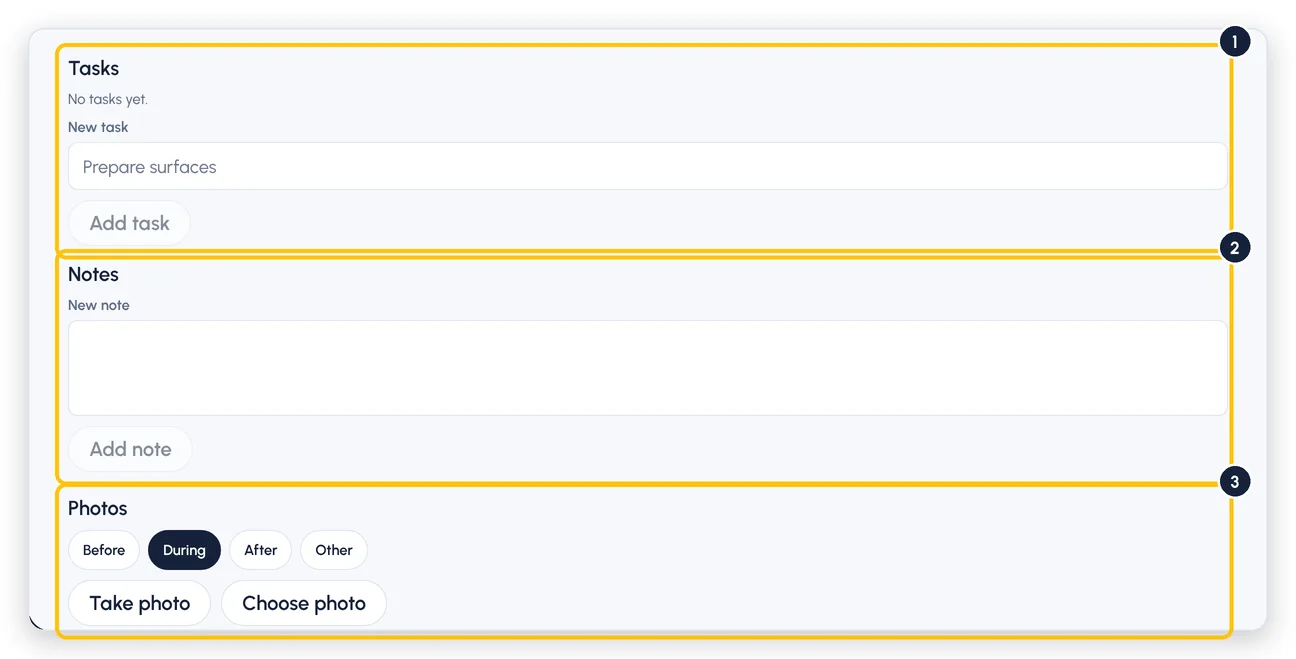
It’s in the Execution tab. Your crew sees the same tasks in Workday and can check them off.
- 1Tasks: a checklist for the job (for example «Prepare surfaces»).
- 2Notes for the office and your crew.
- 3Photos before, during and after: take one or choose it from your phone.
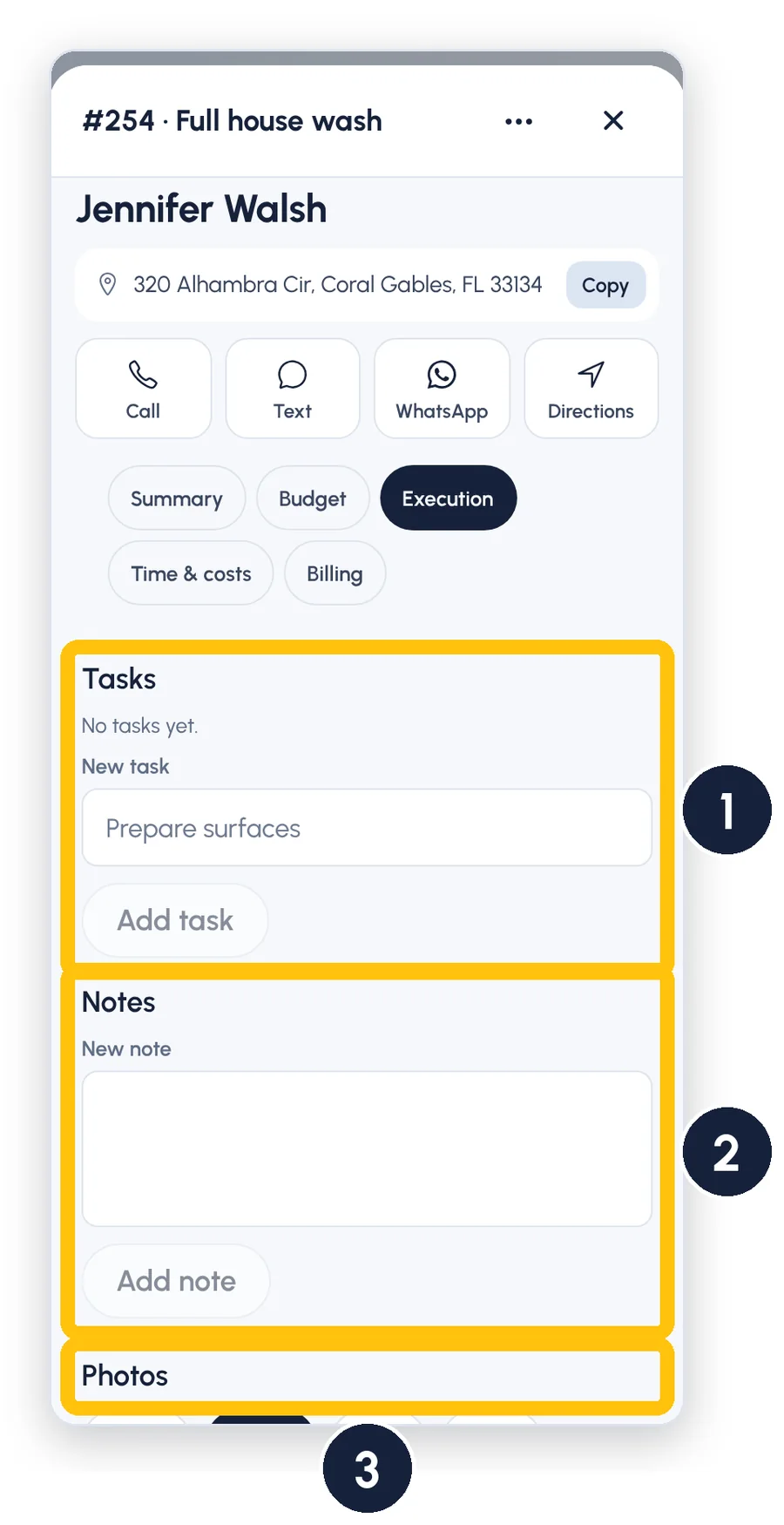
It’s in the Execution tab. Your crew sees the same tasks in Workday and can check them off.