The basics: How CrewAcorn works
Start here. In a few minutes you’ll know how the app is organized and how work flows from a client to getting paid.
On this page
How CrewAcorn works
- 1Add your client: name, phone and address.
- 2Send a quote. Your client accepts and signs it from a link.
- 3Turn it into a job and put the visits on the schedule. Your crew sees them in Workday.
- 4When the work is done, send the invoice. Your client pays by card, Apple Pay, Google Pay or bank transfer.
- 5Your Summary and Reports show what’s pending and what you’ve earned.
- ClientAdd them once
- QuoteSigned online
- JobOn the schedule
- InvoiceSent by link
- PaidCard or bank
How to create your account
- 1Go to crewacorn.com and tap Create account.
- 2Enter your email and a password. We send you a code by email to confirm it’s you.
- 3Give your business a name. You start with 14 days free and every feature, no credit card.
How to find your way around
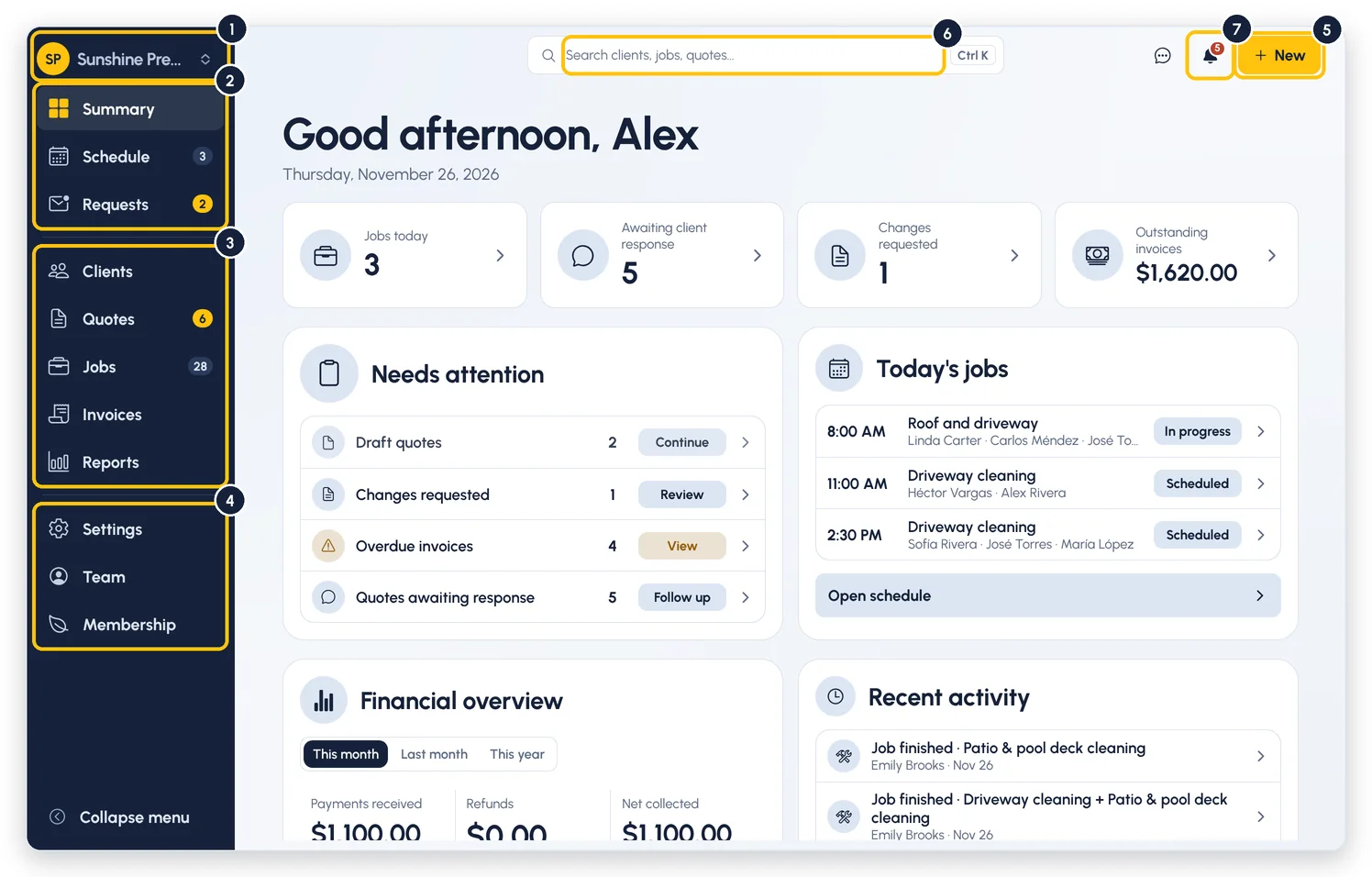
- 1Your business. If you have more than one, switch between them here.
- 2Summary, Schedule and Requests: your day.
- 3Clients, Quotes, Jobs, Invoices and Reports: your work.
- 4Settings, Team and Membership.
- 5+ New: create a client, quote, job or invoice from any screen.
- 6Search clients, jobs, quotes and invoices.
- 7Notifications: accepted quotes, payments, requests and more.
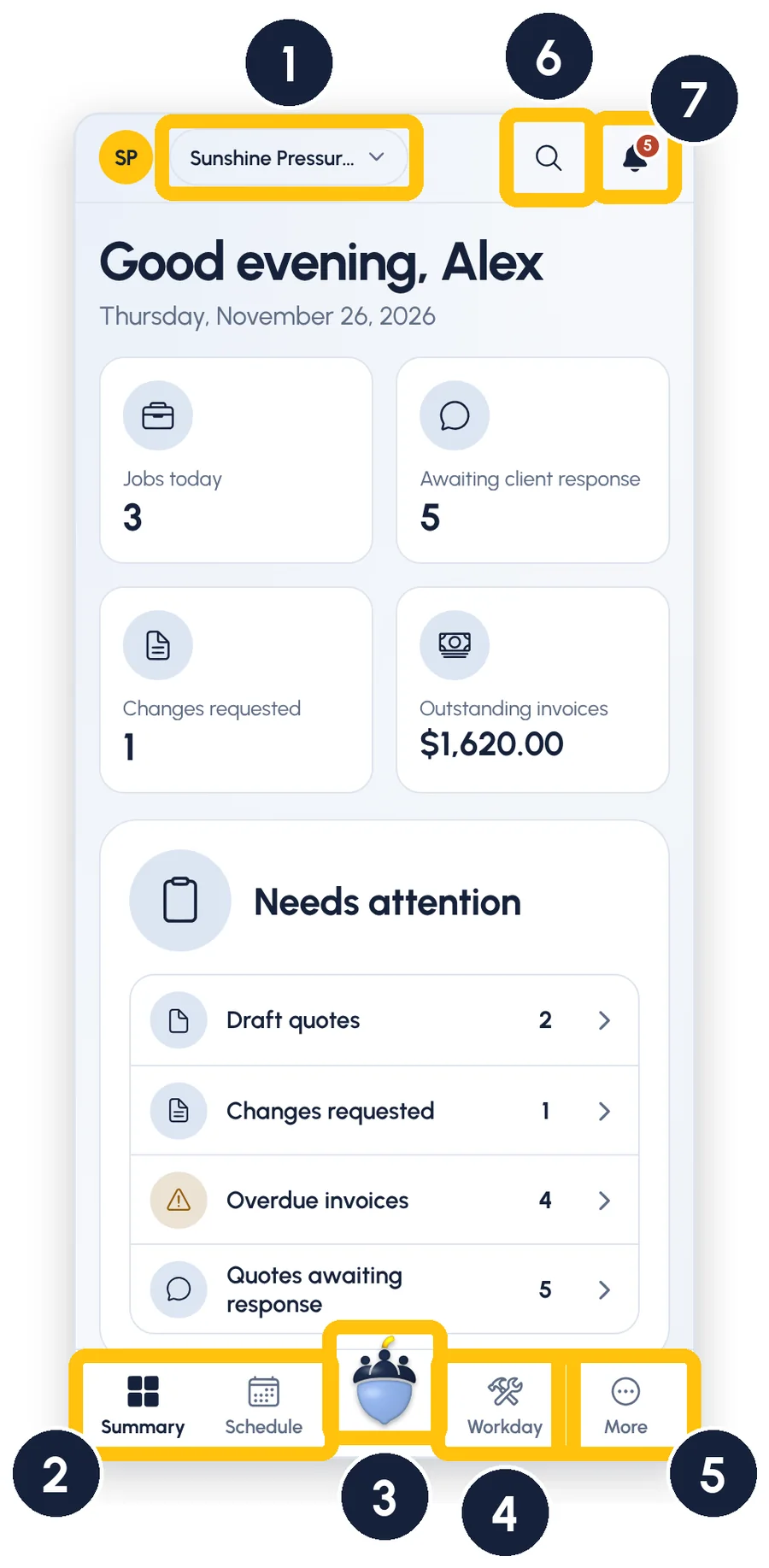
On the phone the bar at the bottom has Summary · Schedule · Create · Workday · More.
- 1Your business. If you have more than one, switch between them here.
- 2Summary and Schedule: your day.
- 3Create: a new job, quote, visit, invoice or client.
- 4Workday: your visits of the day and your shift.
- 5More: Requests, Clients, Quotes, Jobs, Invoices, Reports, Settings, Team and Membership.
- 6Search clients, jobs, quotes and invoices.
- 7Notifications: accepted quotes, payments, requests and more.
On a computer the menu is on the left side of the screen.
How to read your Summary
- 1Your day at a glance: jobs today, quotes waiting for an answer, changes requested and invoices to collect. Tap a card to open the list.
- 2Needs attention: drafts, changes requested, overdue invoices and quotes without an answer, each with a button that takes you straight there.
- 3Today’s jobs with time, crew and status. Open schedule shows the whole week.
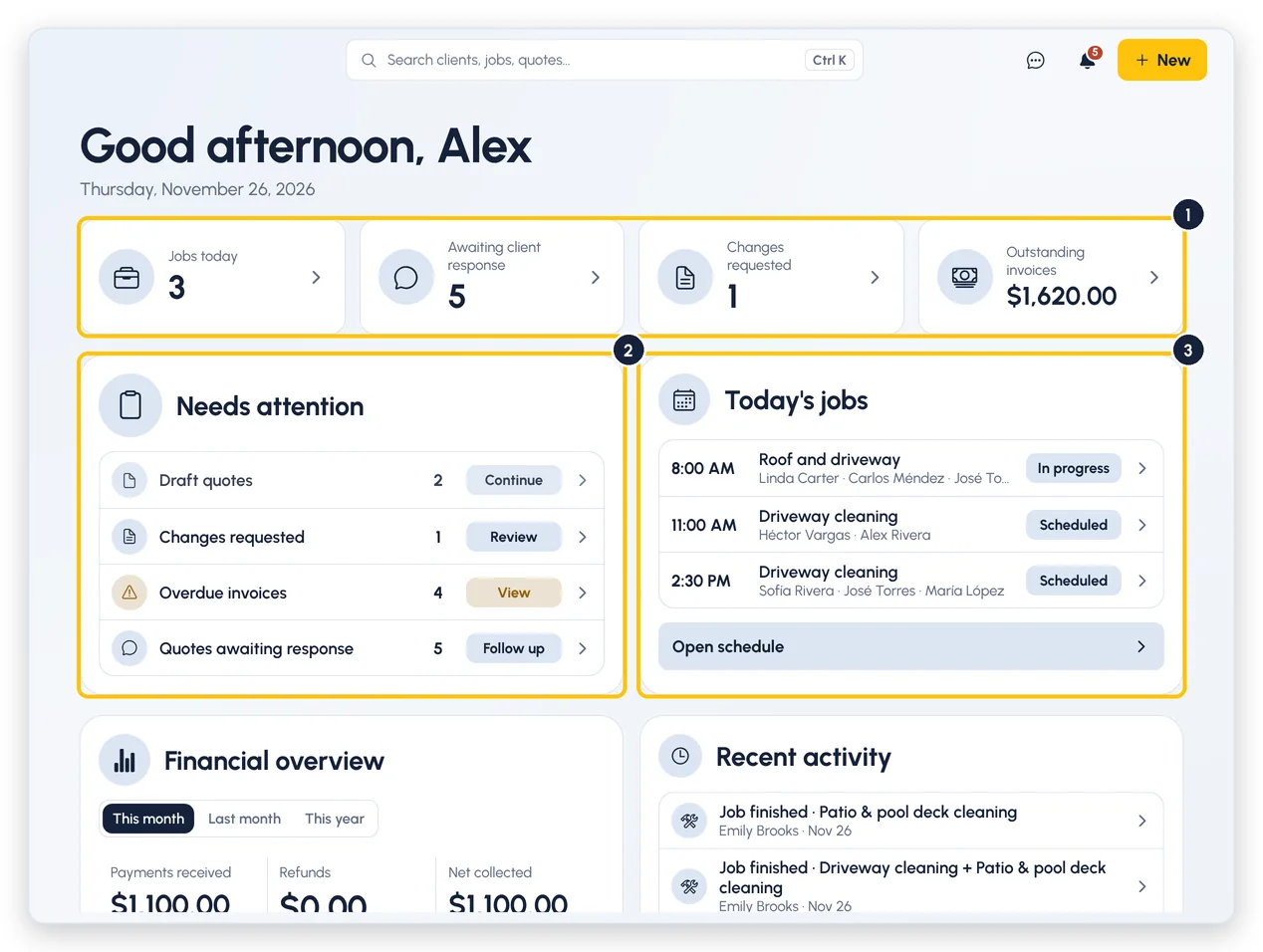
Further down: the financial overview of the month and recent activity.
- 1Your day at a glance: jobs today, quotes waiting for an answer, changes requested and invoices to collect. Tap a card to open the list.
- 2Needs attention: drafts, changes requested, overdue invoices and quotes without an answer, each with a button that takes you straight there.
- 3Today’s jobs with time, crew and status. Open schedule shows the whole week.
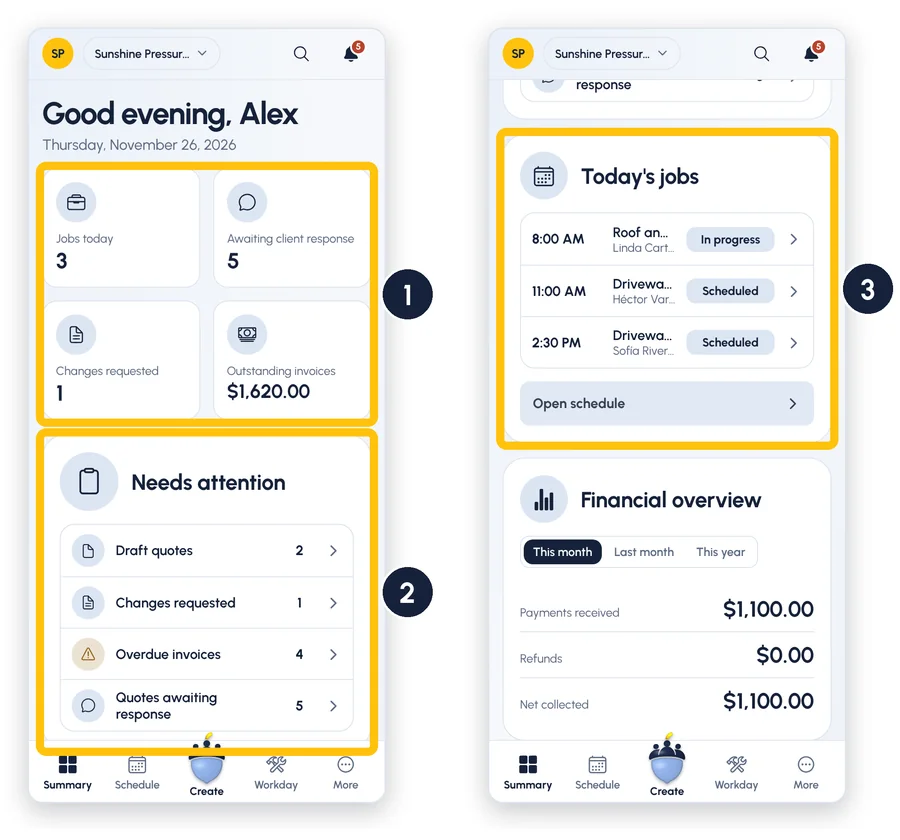
Further down: the financial overview of the month and recent activity.
How to complete your business details
- 1Your business name.
- 2Your phone.
- 3Your email and address.
- 4Your logo (PNG or JPG). Without one, your initials are used.
- 5Payment instructions (Zelle, cash, check…), shown on your invoices.
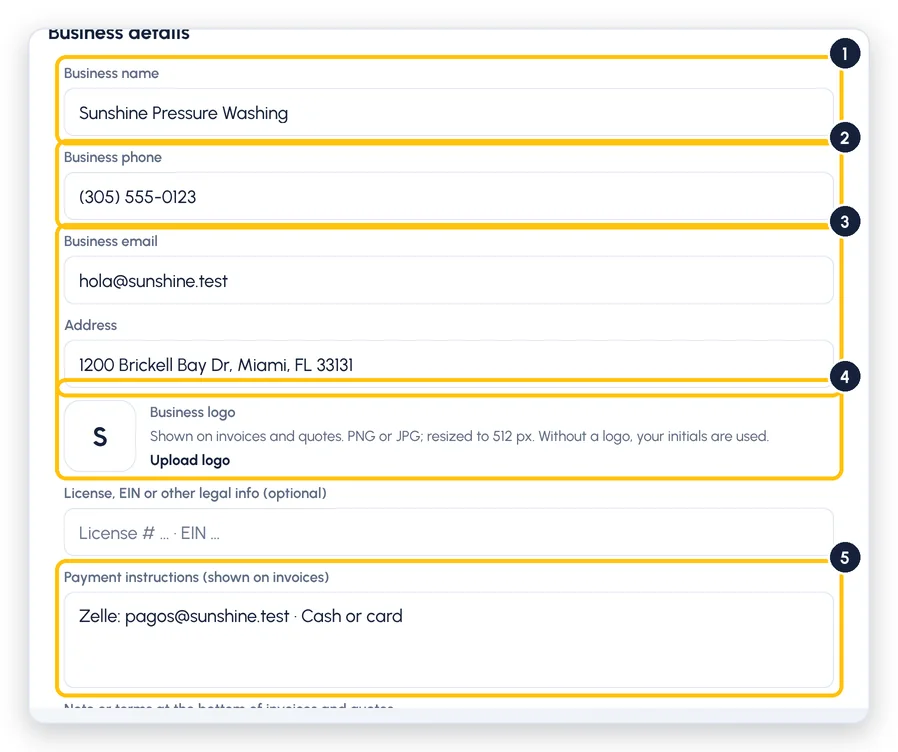
It’s in Settings → Business settings. Everything appears on your quotes and invoices, and saves on its own.
- 1Your business name.
- 2Your phone.
- 3Your email and address.
- 4Your logo (PNG or JPG). Without one, your initials are used.
- 5Payment instructions (Zelle, cash, check…), shown on your invoices.
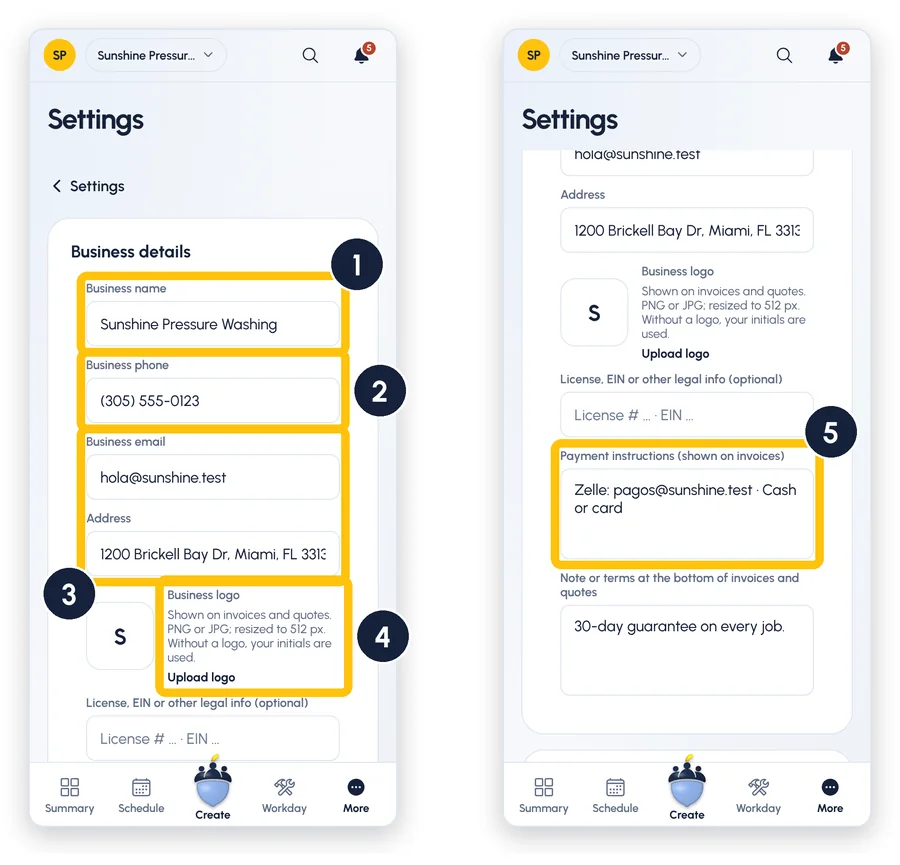
It’s in More → Settings → Business settings. Everything appears on your quotes and invoices, and saves on its own.
How the free trial and membership work
- 1For 14 days you can use every feature, with no credit card.
- 2After that you can still sign in and see everything. To create new quotes, jobs or invoices, choose a plan in Membership.
- 3Plans depend on the size of your crew. The first 50 businesses that pay keep 40% off for life.
- 4You can cancel anytime from the app. Your plan stays active until the end of the period you paid for.