Quotes: Create, send, modify and get them signed
From the first draft to the client’s signature. Use the map to jump straight to what you need.
On this page
- In CrewAcorn
- How to create a quote
- How to fill in the quote
- How to add more items and set an expiry date
- How to send a quote
- How to modify a quote
- How to record an approval in person
- How to turn on automatic follow-ups
- What your client sees
- How your client receives the quote
- How your client asks for changes
- How your client accepts and signs
- What happens after they accept
In CrewAcorn
How to create a quote
- 1In the side menu, point at Quotes and click the yellow +.
- 2Choose the client. You can search by name, phone, email or address, or create a new client right there.
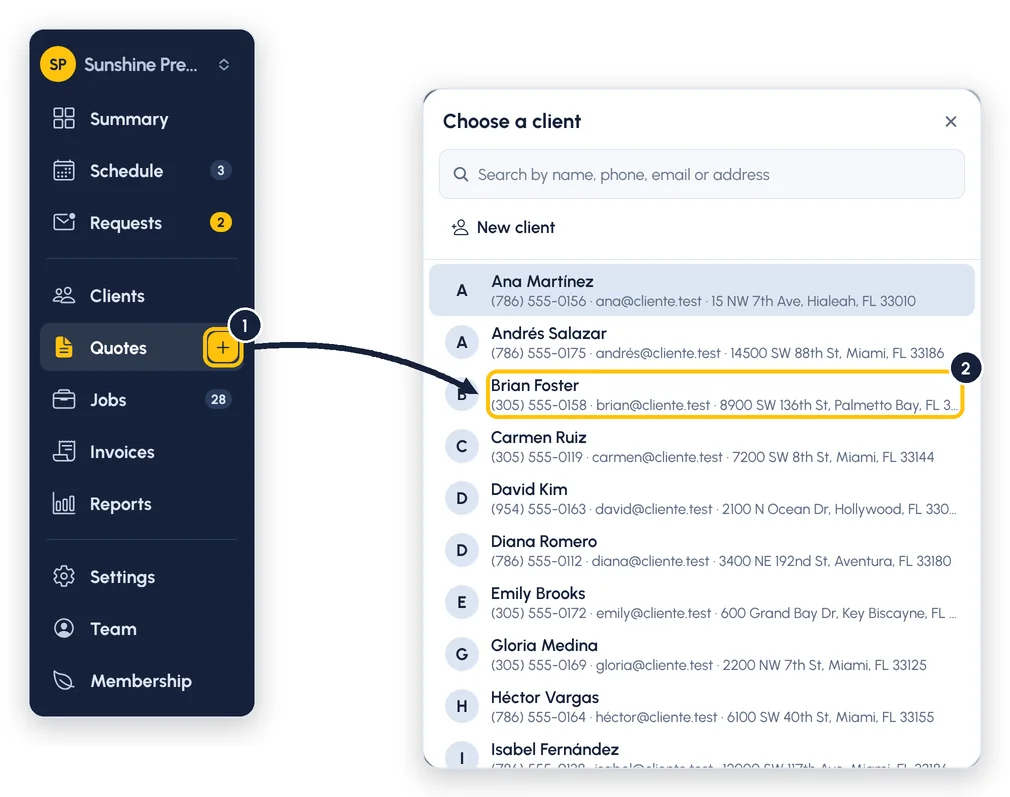
You can also start one from + New at the top of any screen.
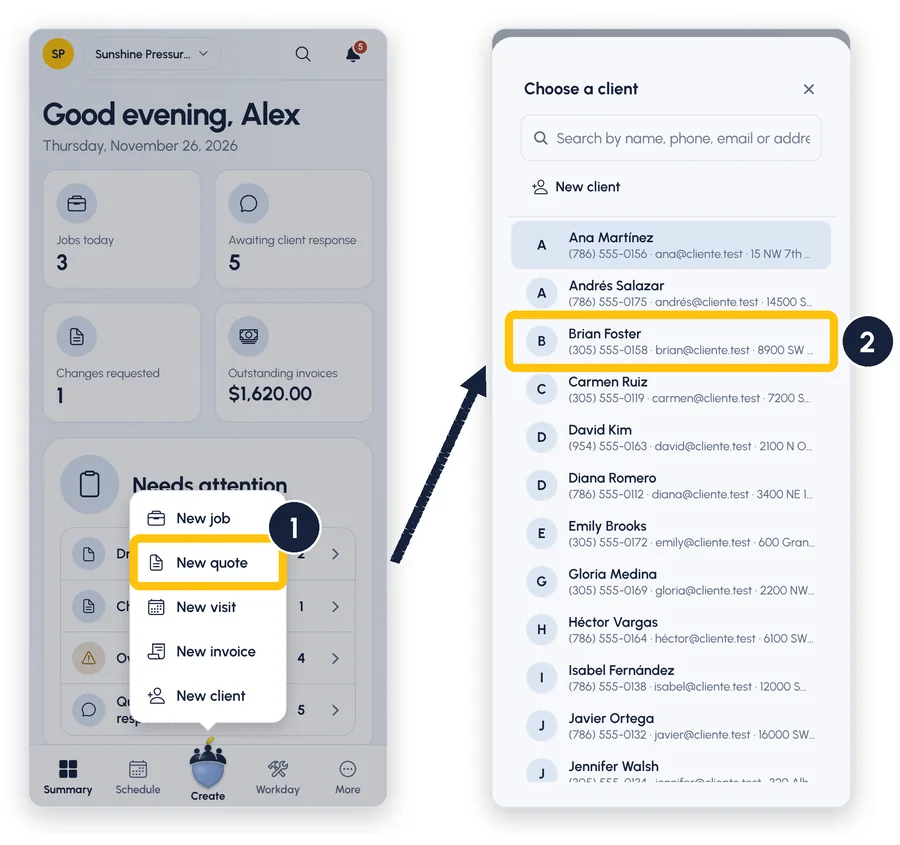
- 1Tap Create at the bottom and choose New quote.
- 2Choose the client. You can search by name, phone, email or address, or create a new client right there.
How to fill in the quote
- 1Write a title your client will recognize (for example “Gutter cleaning”).
- 2Name the item. Details on a new line show smaller underneath.
- 3Enter the price. Quantity is optional.
- 4If you want a deposit, enter it in Requested deposit.
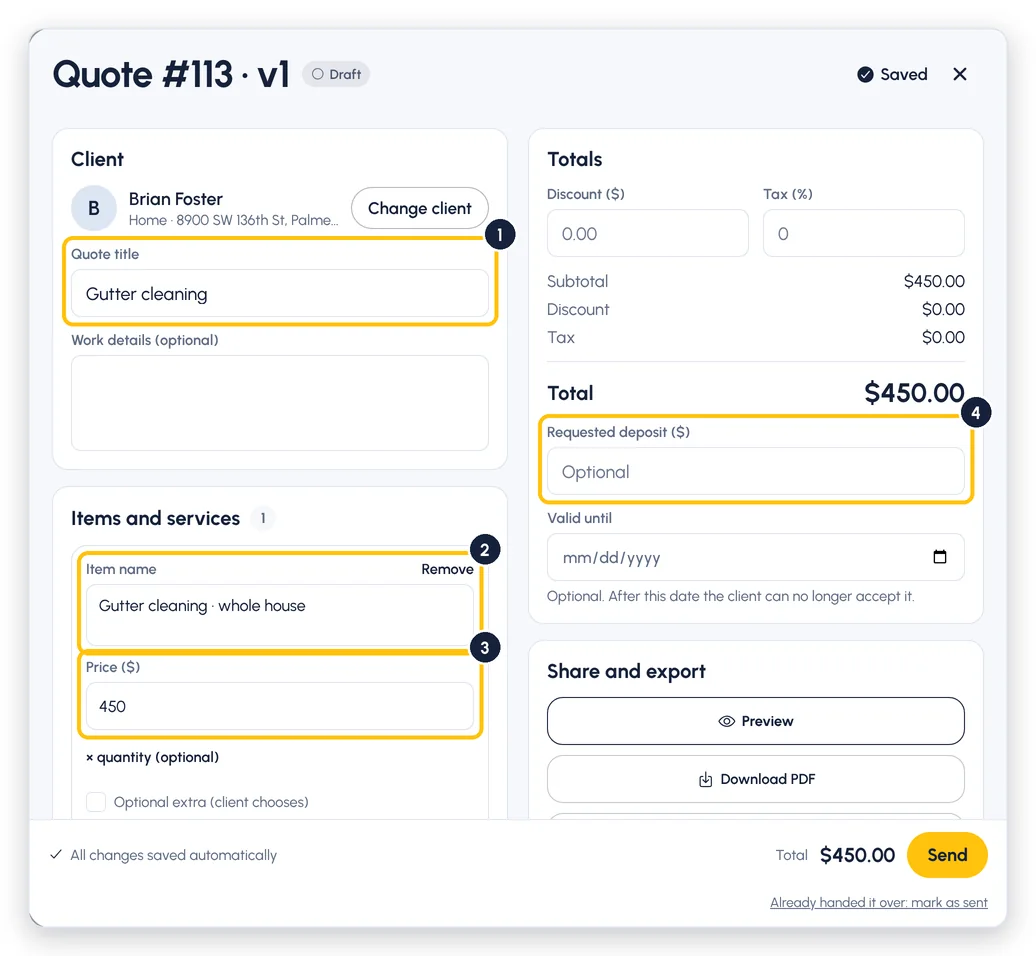
Everything saves on its own. Discount and tax are in Totals.
- 1Write a title your client will recognize (for example “Gutter cleaning”).
- 2Name the item. Details on a new line show smaller underneath.
- 3Enter the price. Quantity is optional.
- 4If you want a deposit, enter it in Requested deposit.
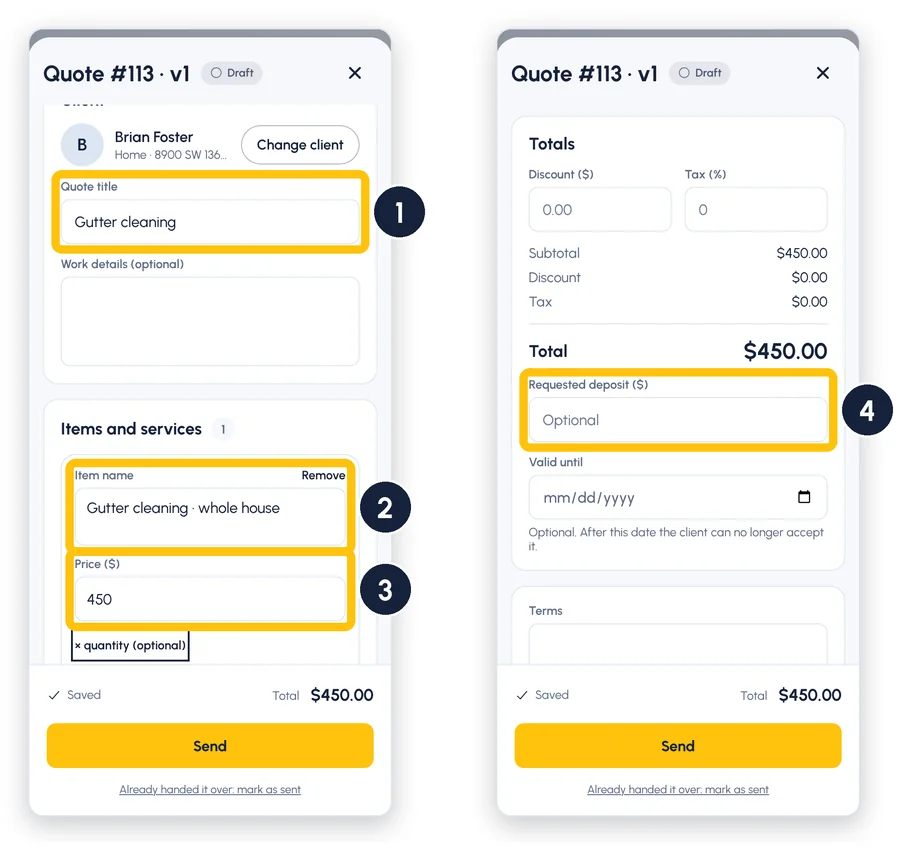
Everything saves on its own. Discount and tax are in Totals.
How to add more items and set an expiry date
- 1Add item adds another line.
- 2Choose from catalog adds services you saved with their prices.
- 3Valid until: after that date your client can no longer accept it.
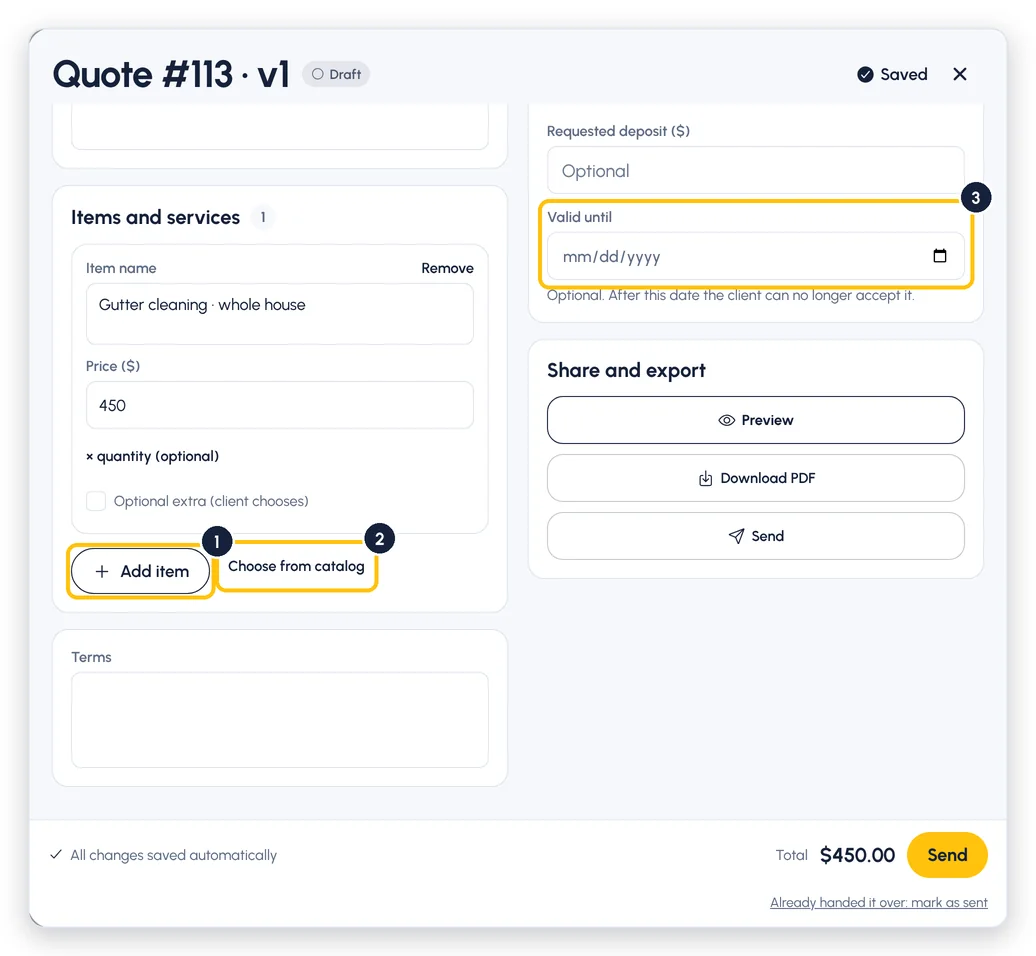
Mark a line as an optional extra and your client decides whether to add it.
- 1Add item adds another line.
- 2Choose from catalog adds services you saved with their prices.
- 3Valid until: after that date your client can no longer accept it.
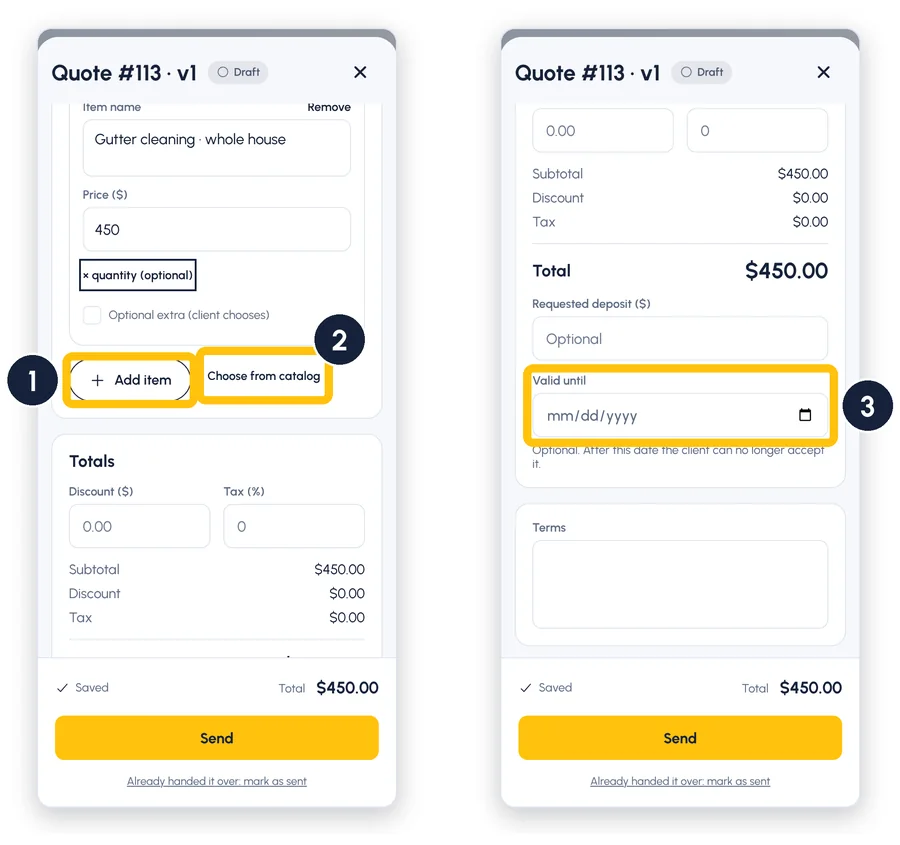
Mark a line as an optional extra and your client decides whether to add it.
How to send a quote
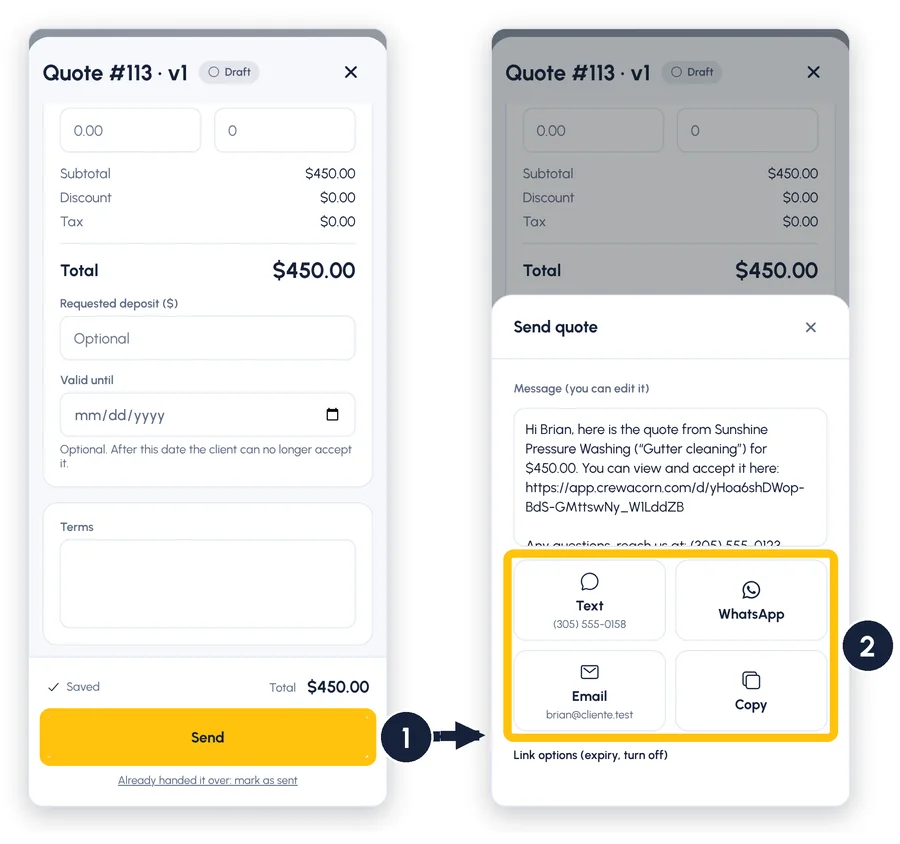
- 1Click Send.
- 2Choose Text, WhatsApp, Email or Copy. The message is ready with the private link and you can edit it. The quote is marked as sent.
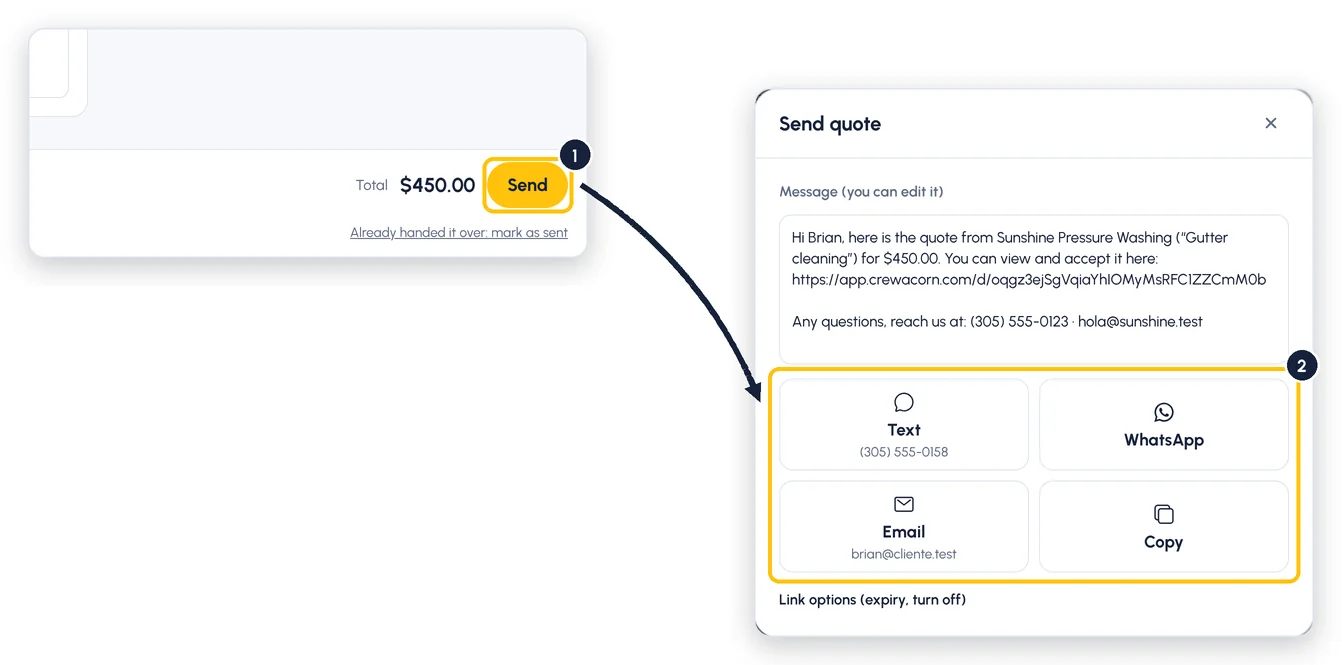
Handed it over on paper? Use Already handed it over: mark as sent. In Link options you choose how long the link lasts or turn it off.
- 1Click Send.
- 2Choose Text, WhatsApp, Email or Copy. The message is ready with the private link and you can edit it. The quote is marked as sent.
Handed it over on paper? Use Already handed it over: mark as sent. In Link options you choose how long the link lasts or turn it off.
How to modify a quote
- 1When your client asks for changes, the quote shows Changes requested with their comment.
- 2Click Create new version, make the changes and send it again. The same link always shows the latest version you sent.
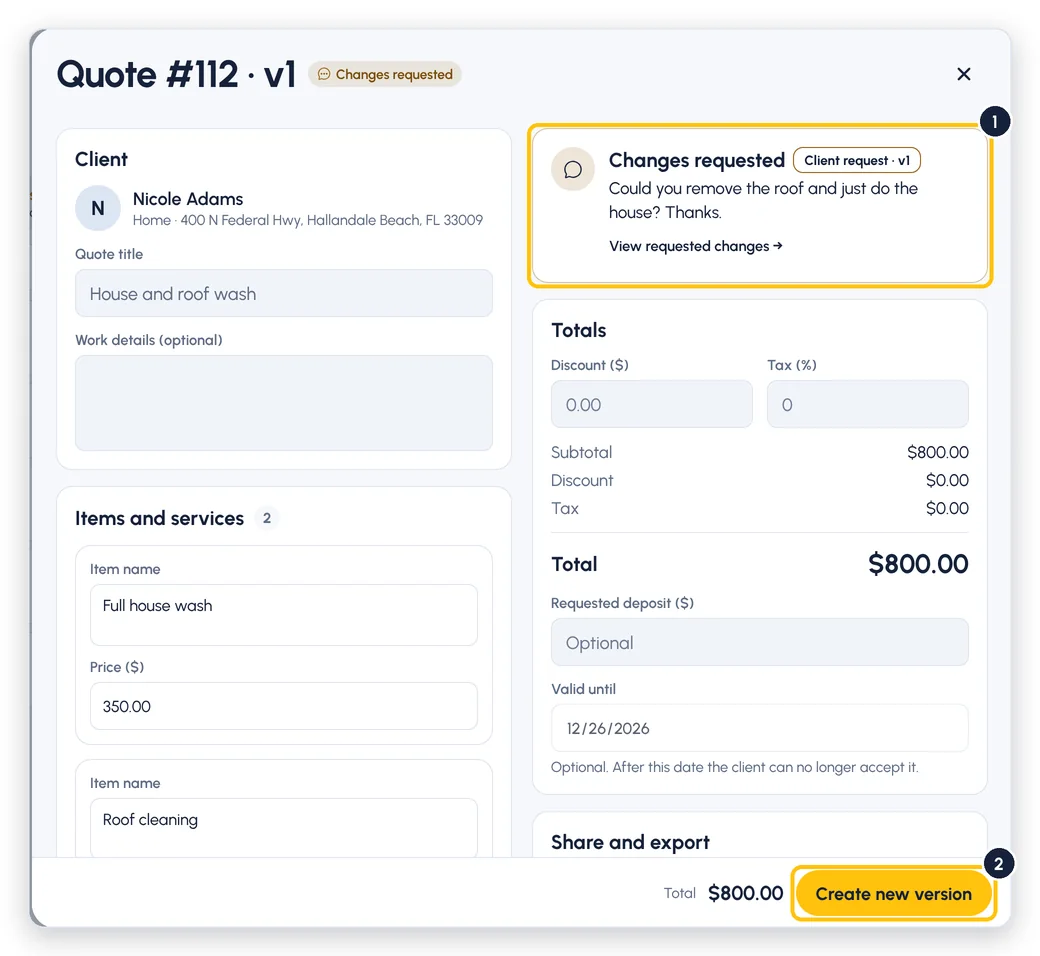
Once a version is signed it is locked. Changing it creates a new version that needs a new approval.
- 1When your client asks for changes, the quote shows Changes requested with their comment.
- 2Click Create new version, make the changes and send it again. The same link always shows the latest version you sent.
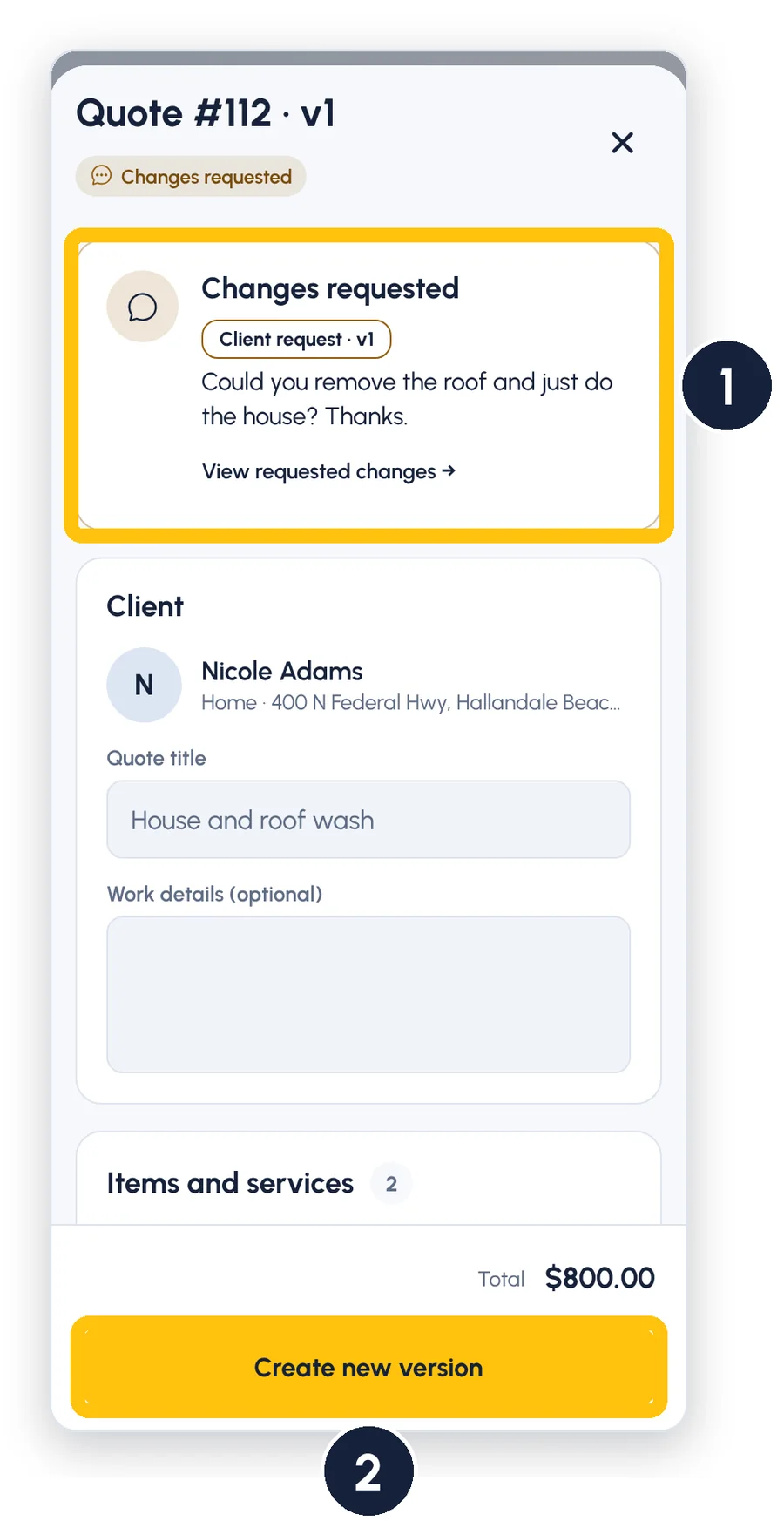
Once a version is signed it is locked. Changing it creates a new version that needs a new approval.
How to record an approval in person
- 1Write the name of the person accepting.
- 2Click Record client approval. The quote is marked as accepted.
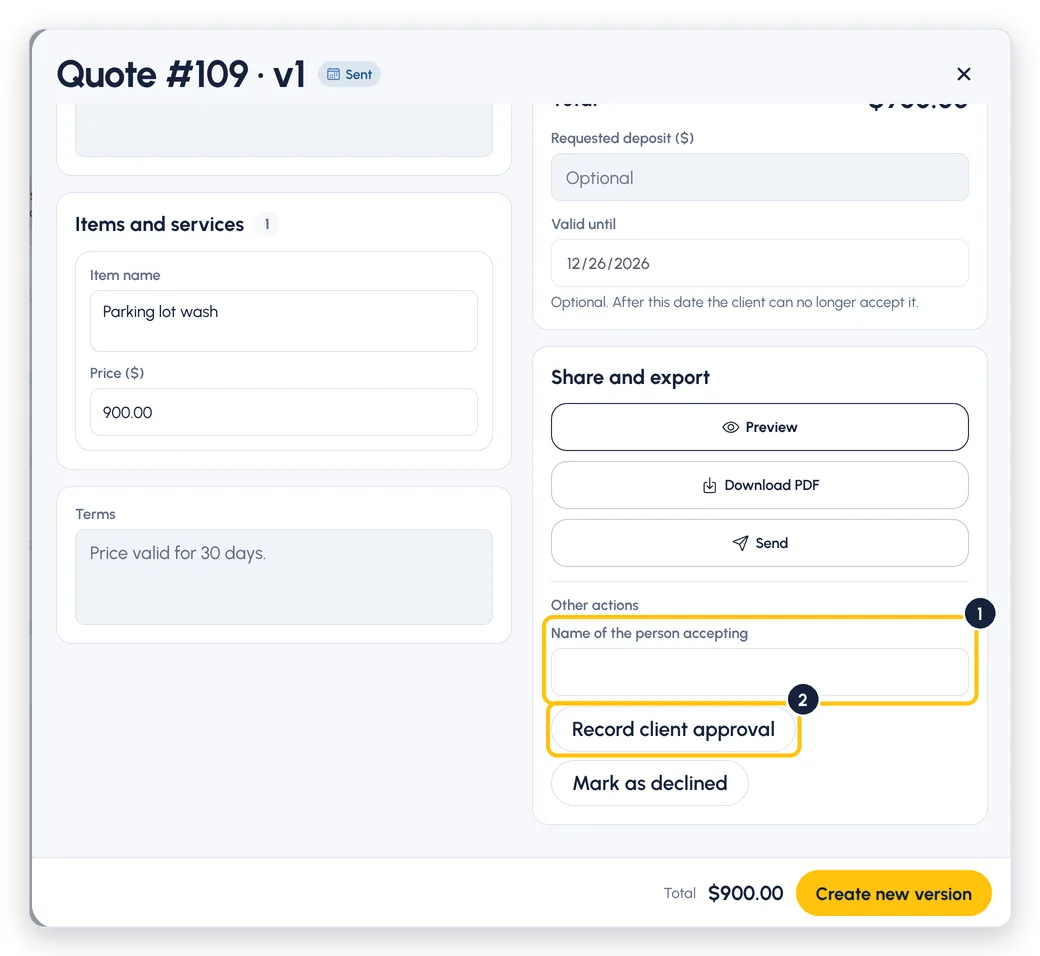
If the client says no, use Mark as declined.
- 1Write the name of the person accepting.
- 2Click Record client approval. The quote is marked as accepted.
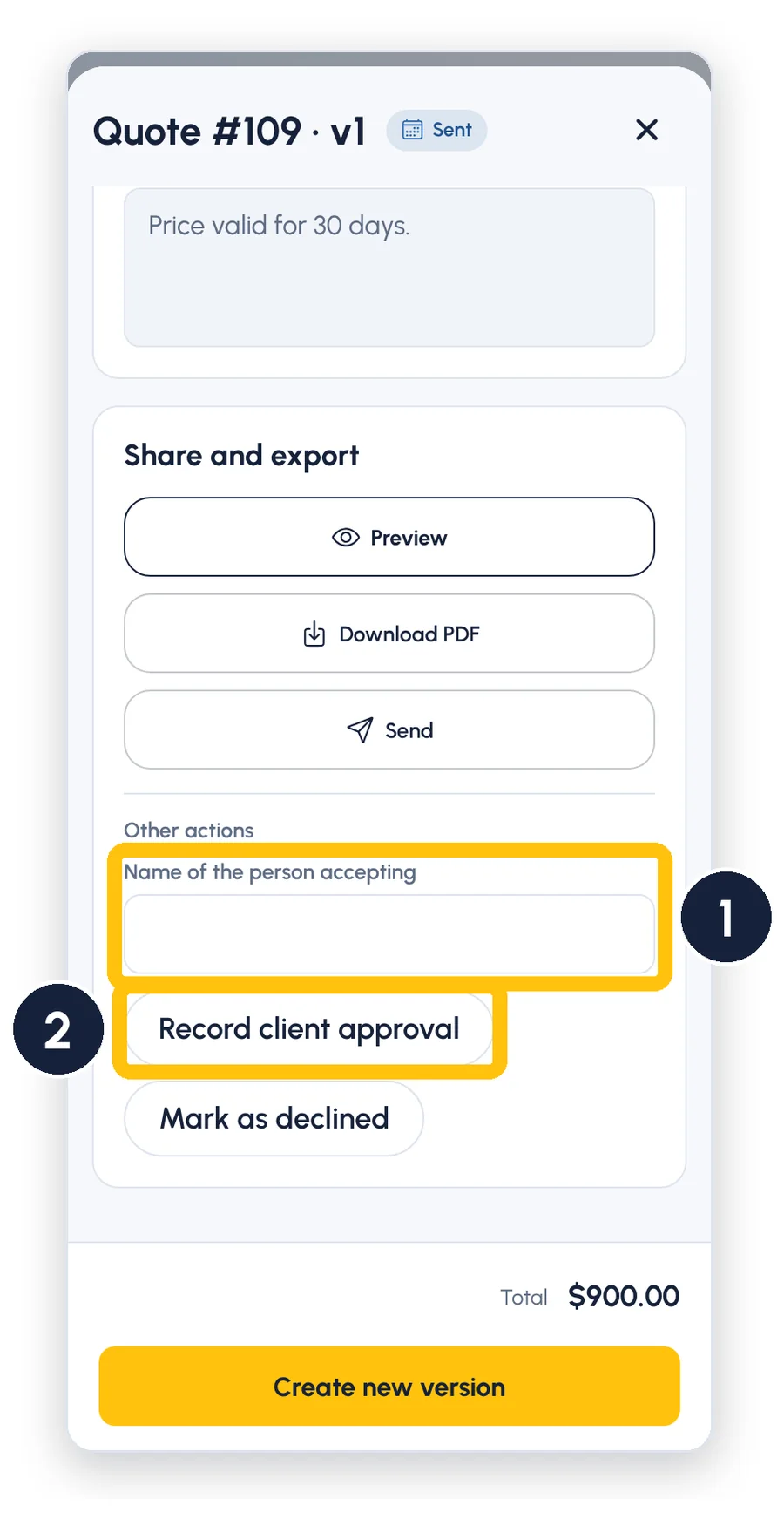
If the client says no, use Mark as declined.
How to turn on automatic follow-ups
- 1In Settings → Client reminders, turn on Quote and invoice follow-ups. If a sent quote has no answer after 3 days, your client gets one friendly reminder with the link.
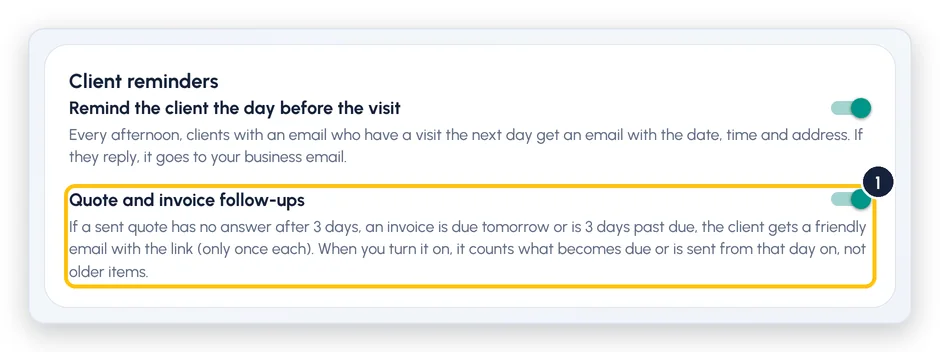
It only counts quotes sent from the day you turn it on.
- 1In More → Settings → Client reminders, turn on Quote and invoice follow-ups. If a sent quote gets no answer in 3 days, your client gets a friendly reminder with the link, only once.
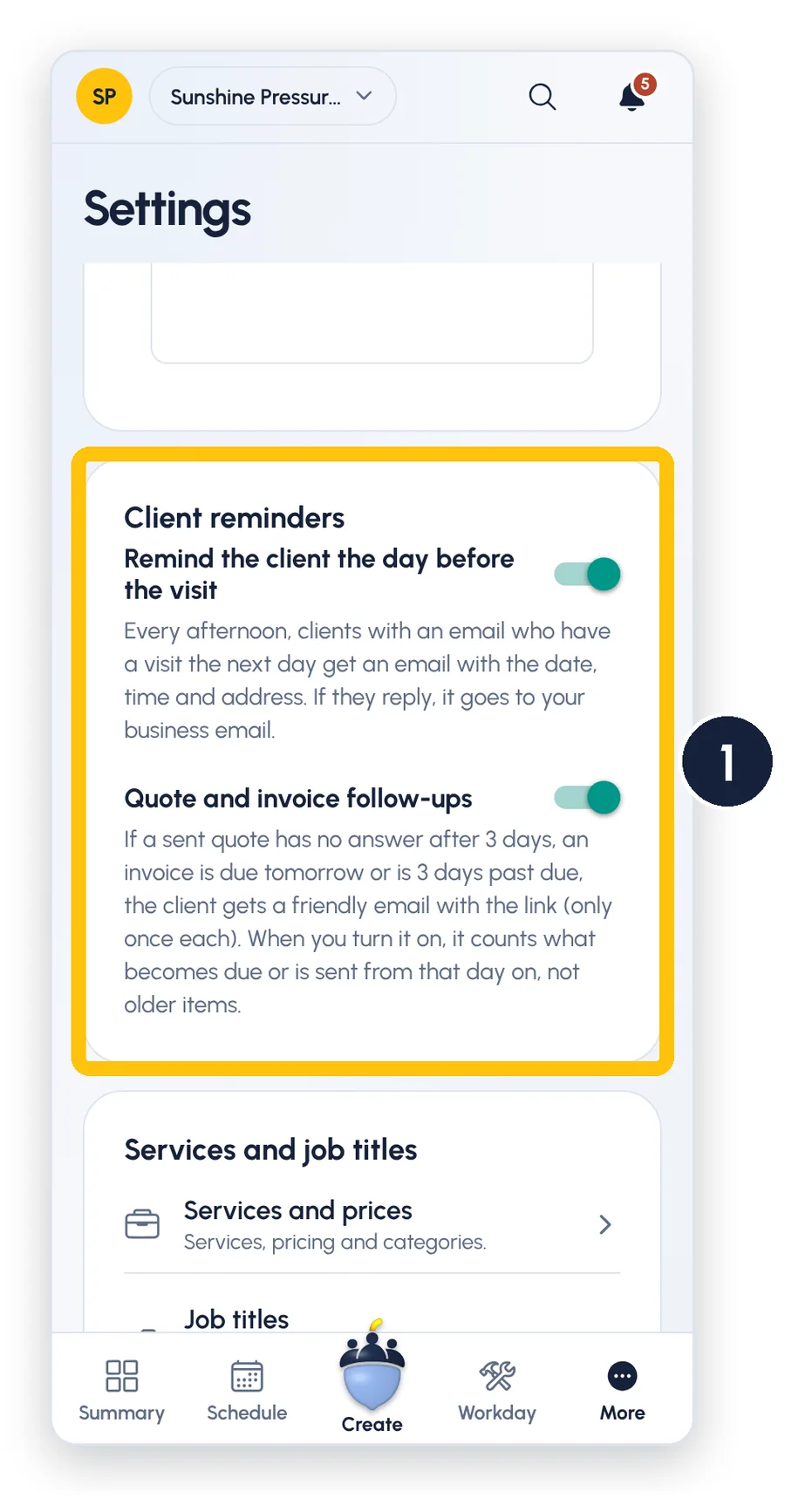
It only counts quotes sent from the day you turn it on.
What your client sees
How your client receives the quote
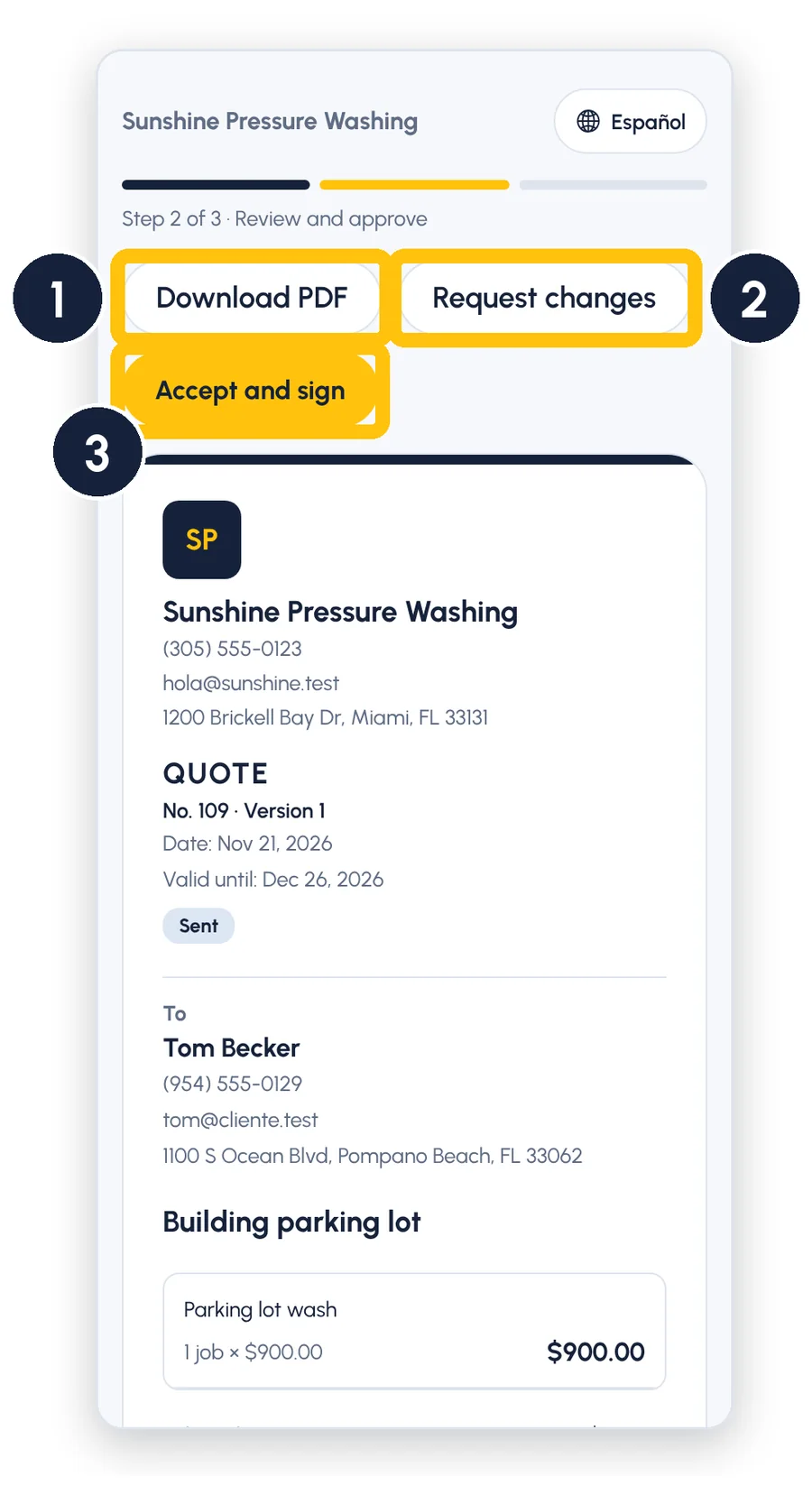
- 1Download PDF to keep a copy.
- 2Request changes if something needs adjusting.
- 3Accept and sign to approve it.
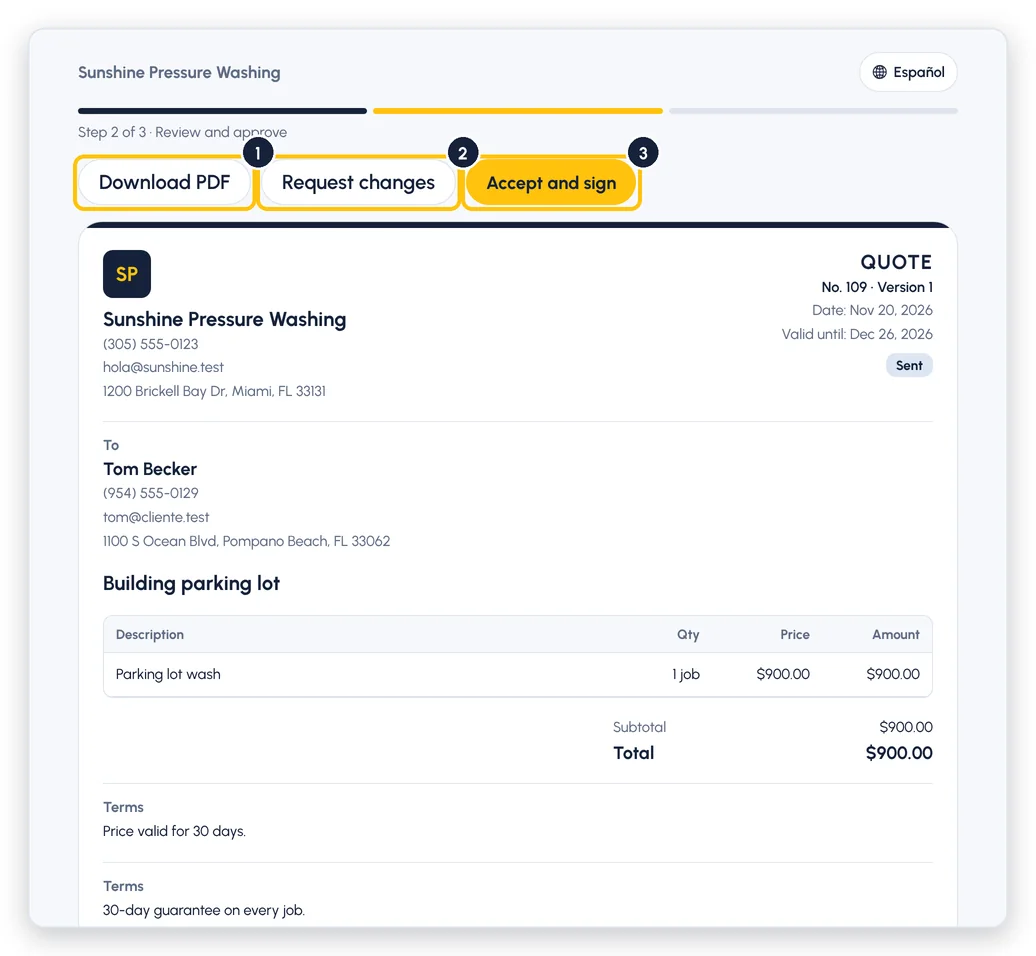
Your client opens the link from your message in their browser, with no app or account. They can switch between English and Spanish at the top.
- 1Download PDF to keep a copy.
- 2Request changes if something needs adjusting.
- 3Accept and sign to approve it.
Your client opens the link from your message in their browser, with no app or account. They can switch between English and Spanish at the top.
How your client asks for changes
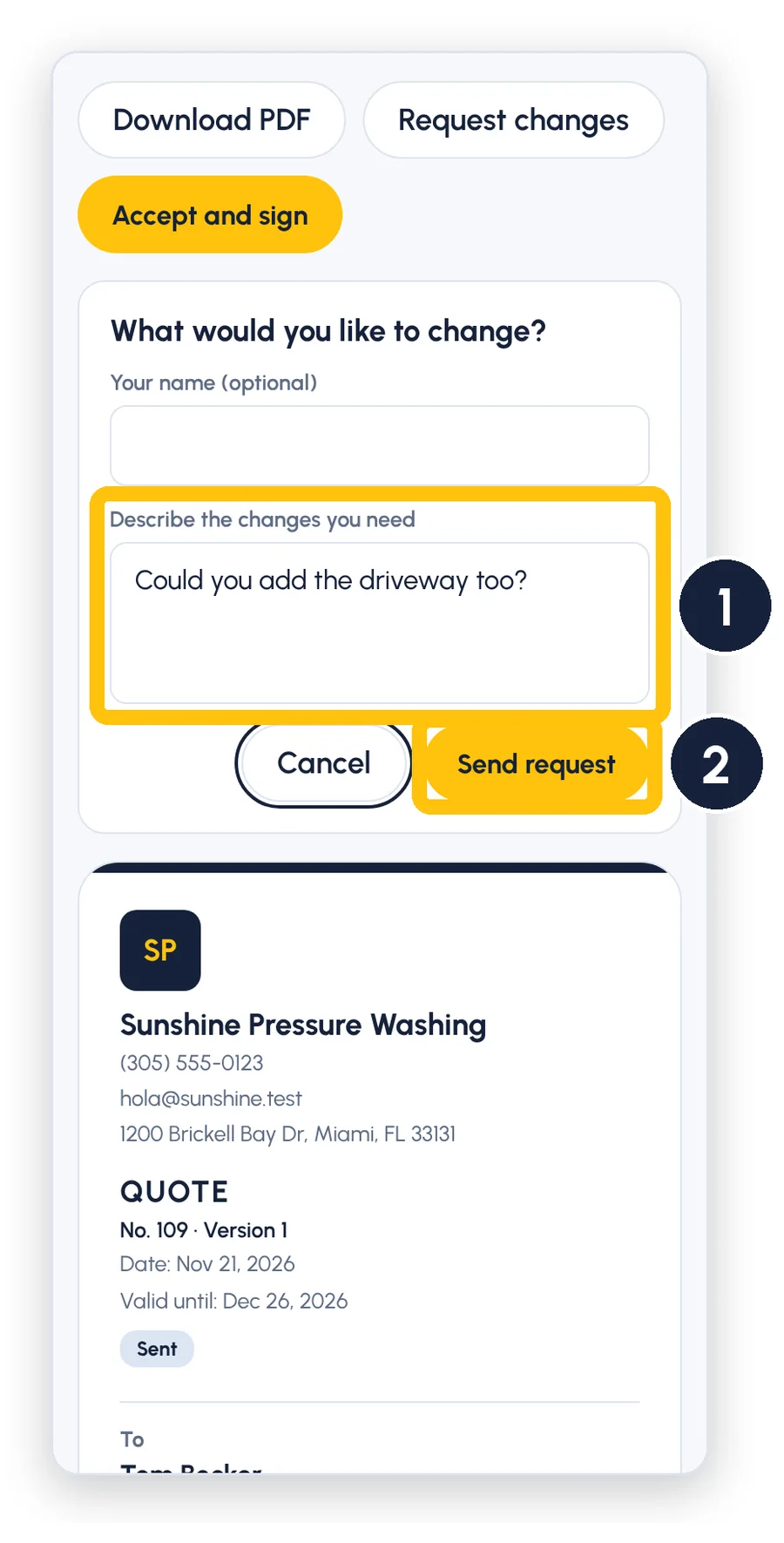
- 1They describe what they’d like to change.
- 2They tap Send request. You get a notification and the quote shows Changes requested (see How to modify a quote).
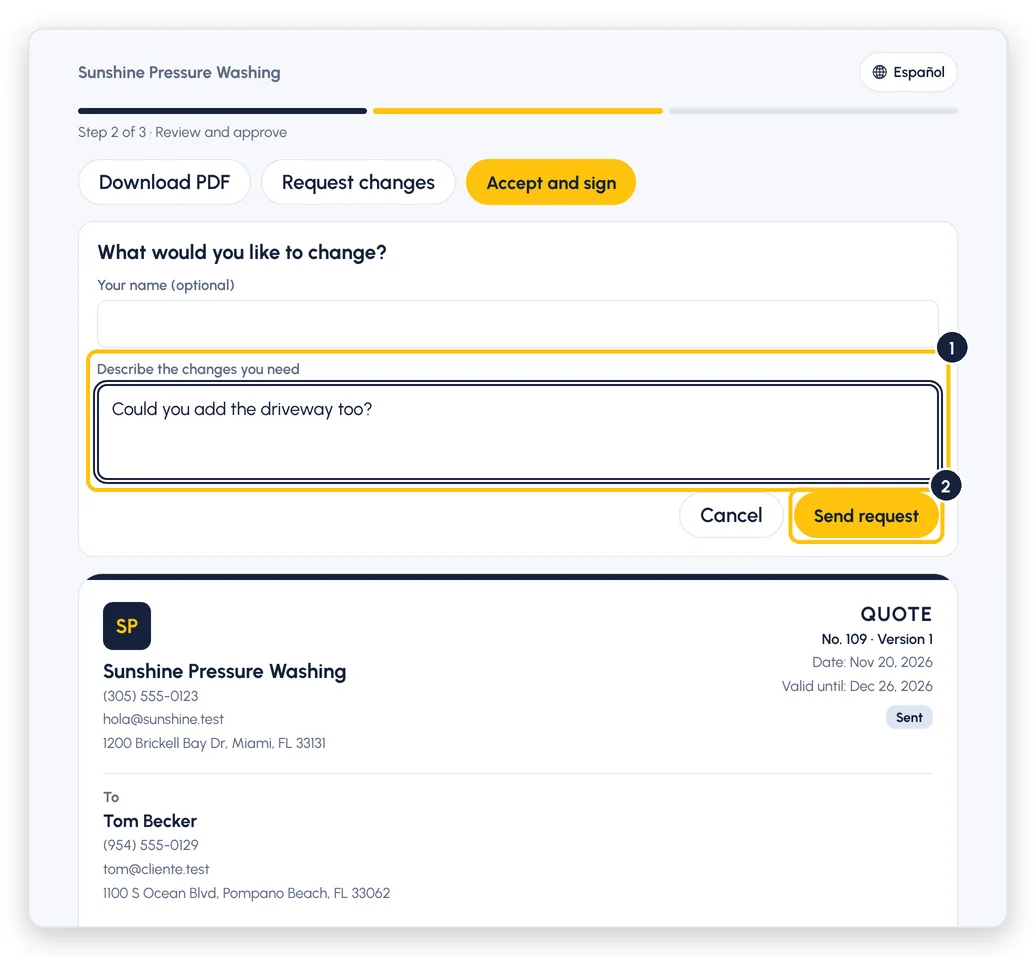
- 1They describe what they’d like to change.
- 2They tap Send request. You get a notification and the quote shows Changes requested (see How to modify a quote).
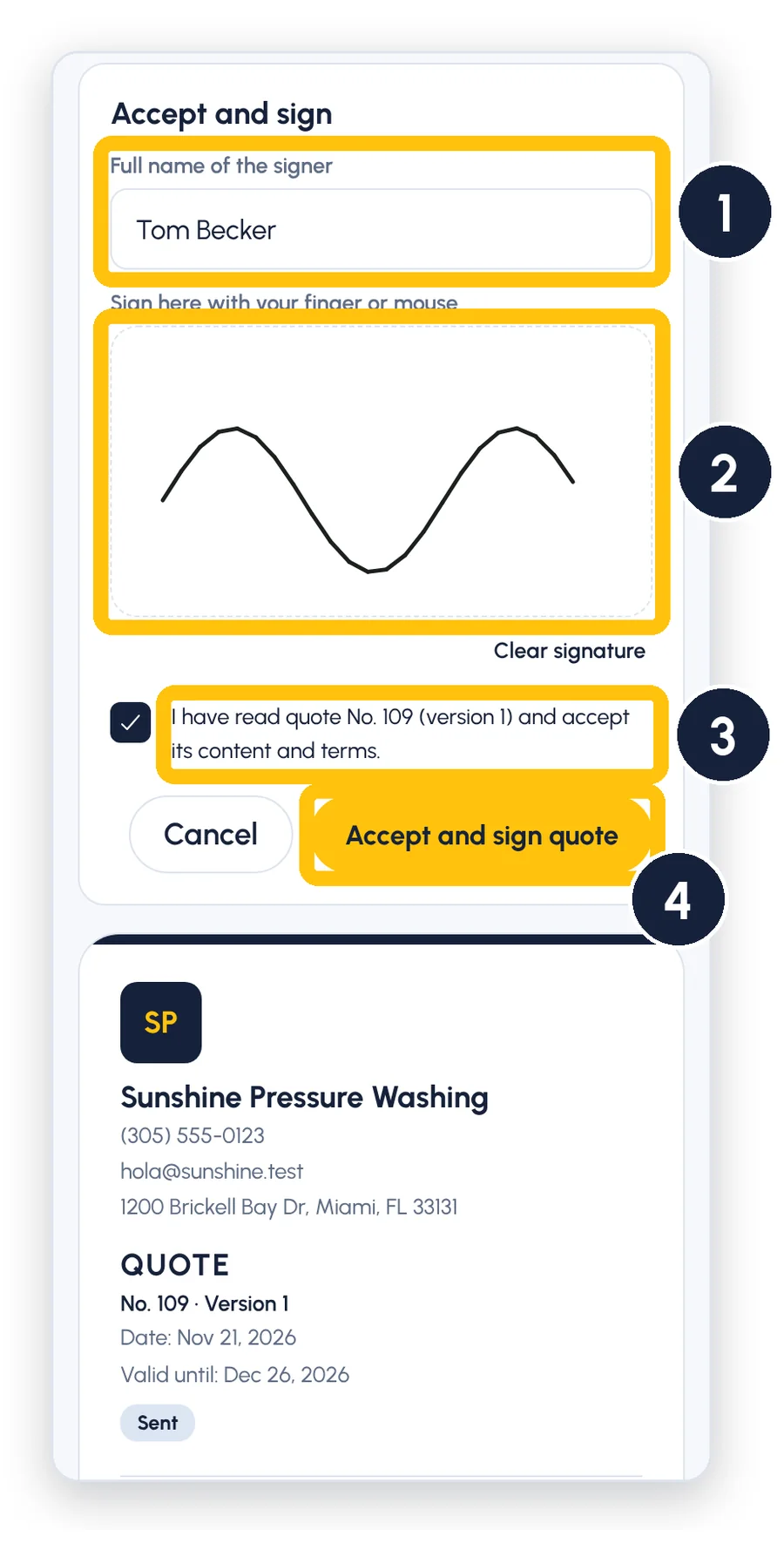
How your client accepts and signs
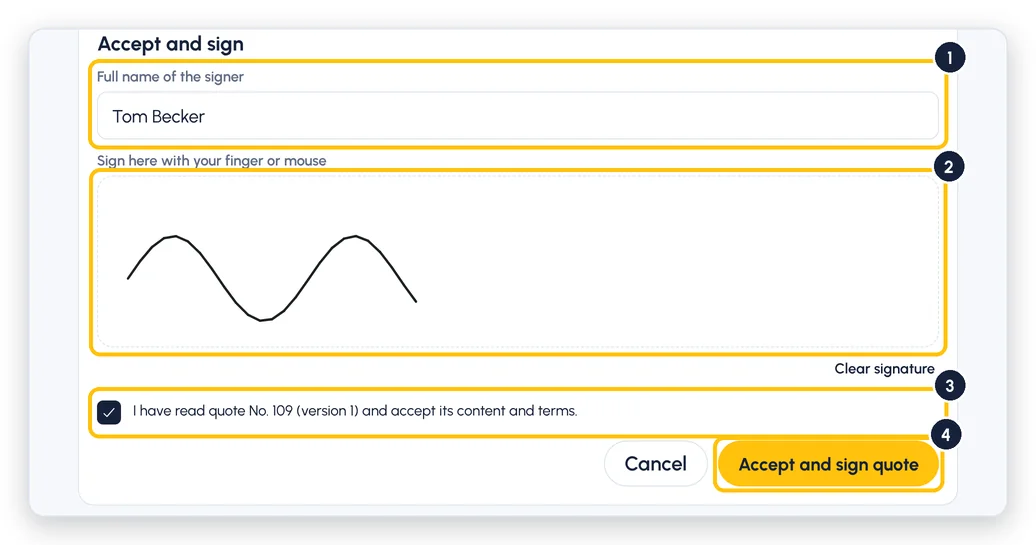
- 1They write their full name.
- 2They sign with their finger or the mouse.
- 3They confirm they have read the quote and accept its terms.
- 4They tap Accept and sign quote.
- 1They write their full name.
- 2They sign with their finger or the mouse.
- 3They confirm they have read the quote and accept its terms.
- 4They tap Accept and sign quote.
What happens after they accept
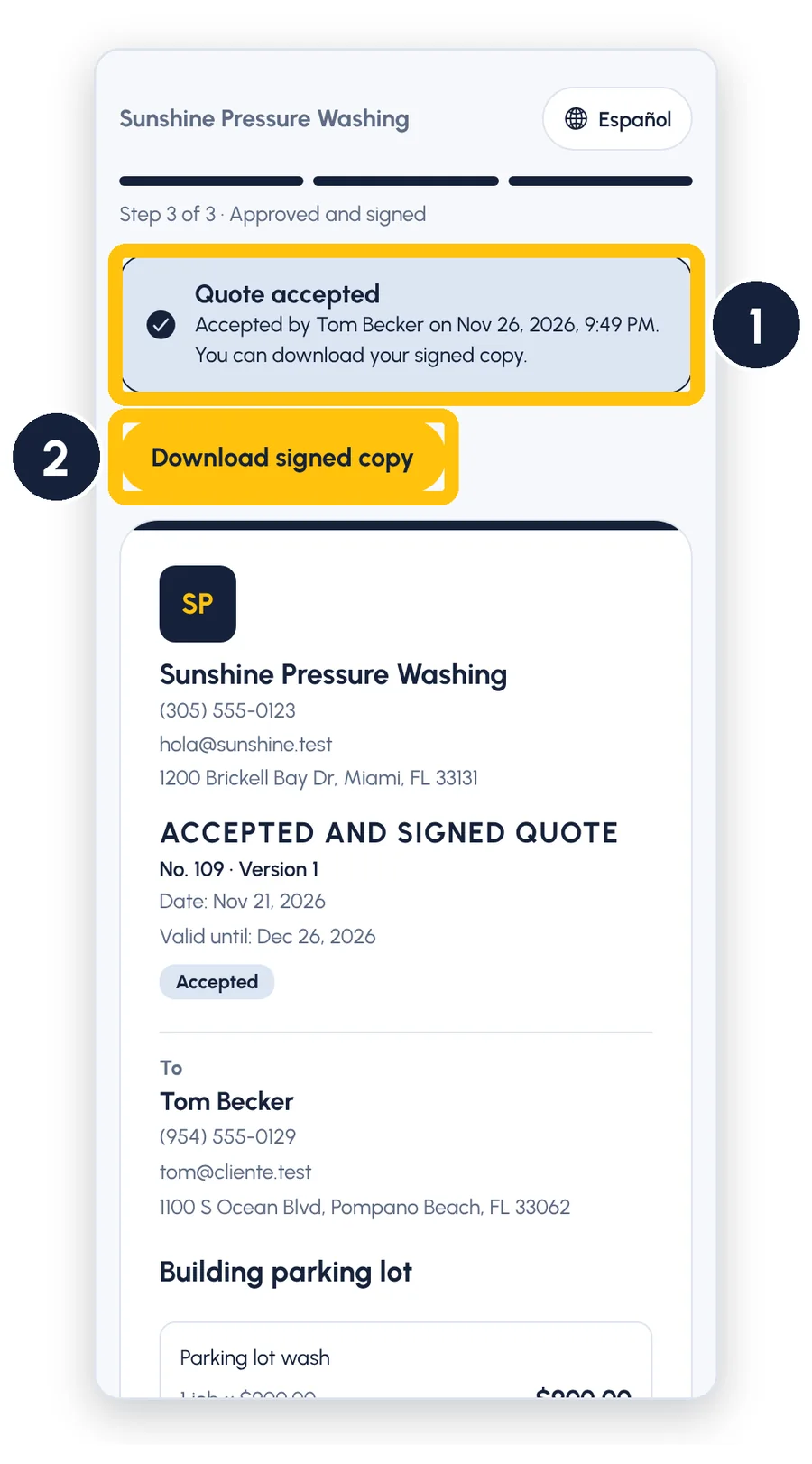
- 1Your client sees the confirmation with the date and their name.
- 2They can download the signed copy. You get a notification and the quote shows as Accepted, ready to turn into a job.
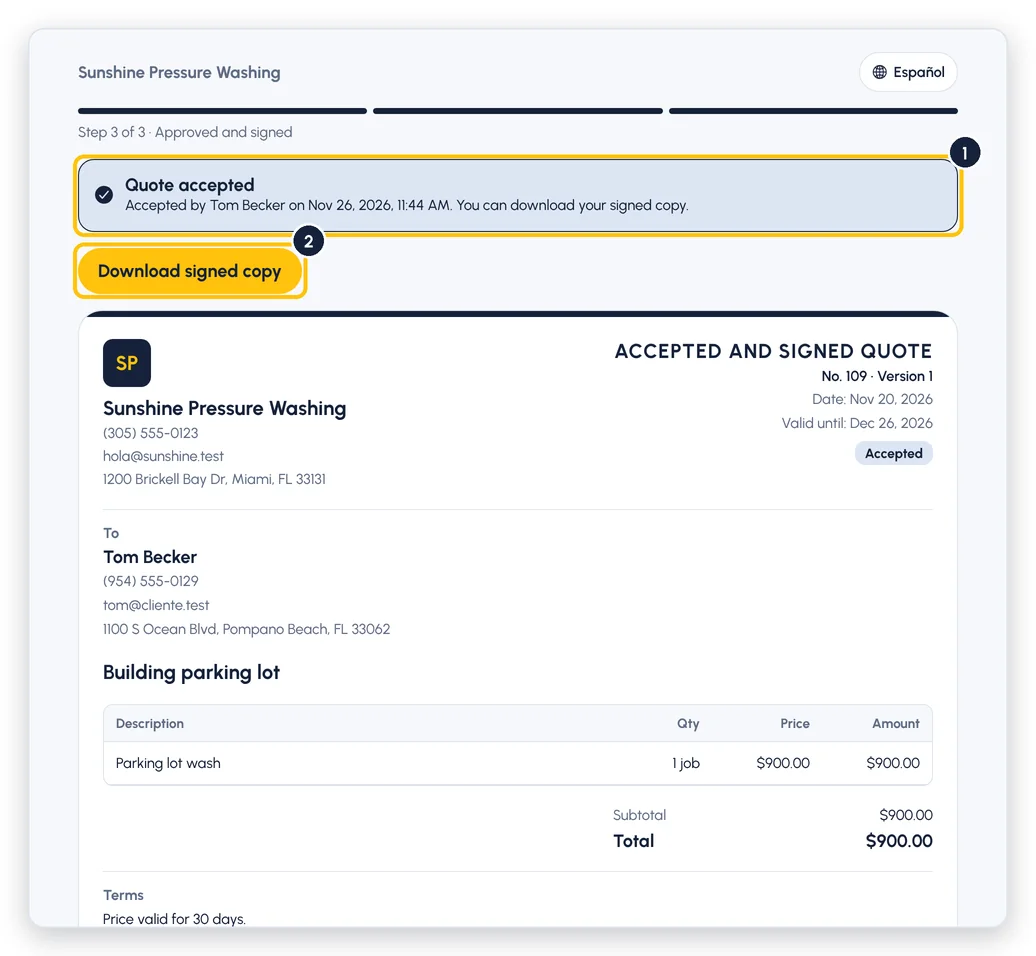
- 1Your client sees the confirmation with the date and their name.
- 2They can download the signed copy. You get a notification and the quote shows as Accepted, ready to turn into a job.